
How to Write Out of Office Message Using AI
You are going on maternity leave or any kind of leave whatsoever, and looking for a quick fix out of office message to leave your clients once you are out of reach. This article is for you. Learn how to write out of office message using AI, so you can set your message and go, without spending your last few days at work stuck on wording.
With WordWriter, you can generate a professional, warm out of office message tailored to your situation in seconds, whether you are stepping away for a few weeks or a few months.
Why Use WordWriter to Write Your Out of Office Message
Out of office messages come with their own considerations, especially around maternity leave. You want to sound professional, but you also do not want to overshare or leave clients confused about who to contact while you are away. WordWriter helps you strike that balance quickly, without having to draft and redraft in your last busy days before leave.
With WordWriter, you can:
- Generate a message in seconds instead of drafting from scratch
- Match your tone to your industry or client relationships
- Create a version for clients and a separate one for internal team members
- Make sure key details, like your return date and who is covering for you, are never left out
Related: How to Write a Cover Letter With AI
How to Write Out of Office Message on WordWriter
Here is exactly how to write out of office message using WordWriter’s AI template, step by step.
Step 1: Sign in to WordWriter
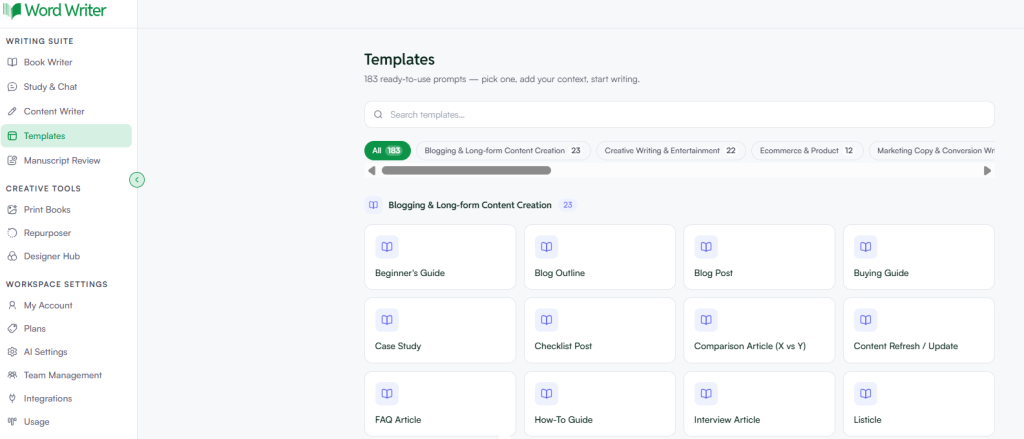
Log into your WordWriter account to access the AI template library.
Step 2: Open Templates
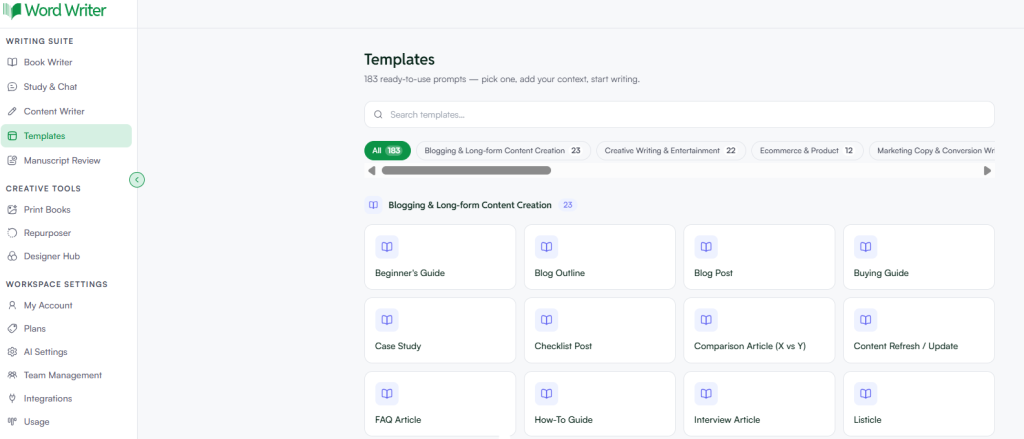
On the left corner of your dashboard, tap on Templates.
Step 3: Search for Out of Office Messages
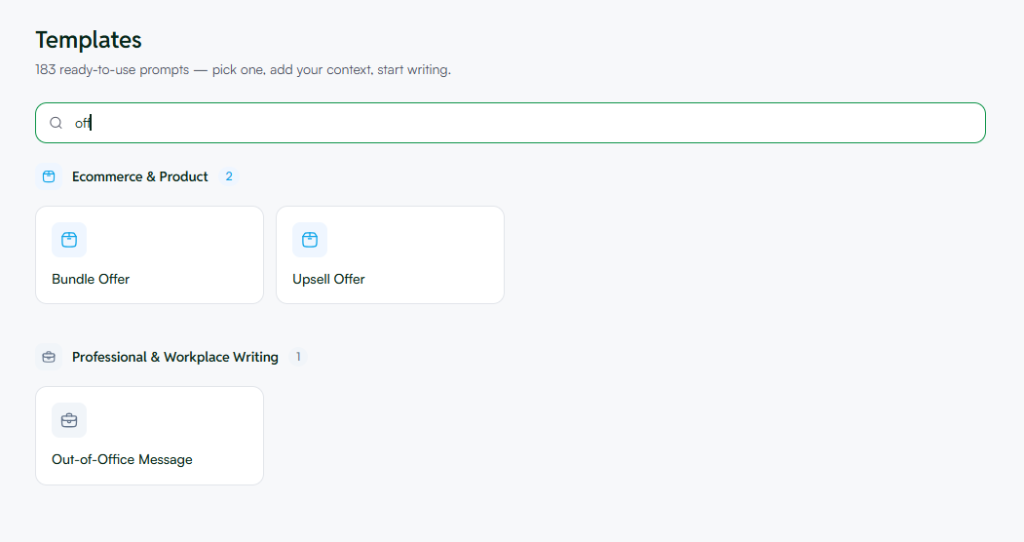
Browse or search for out of office messages within the template library.
Step 4: Open the Template and Add Your Details
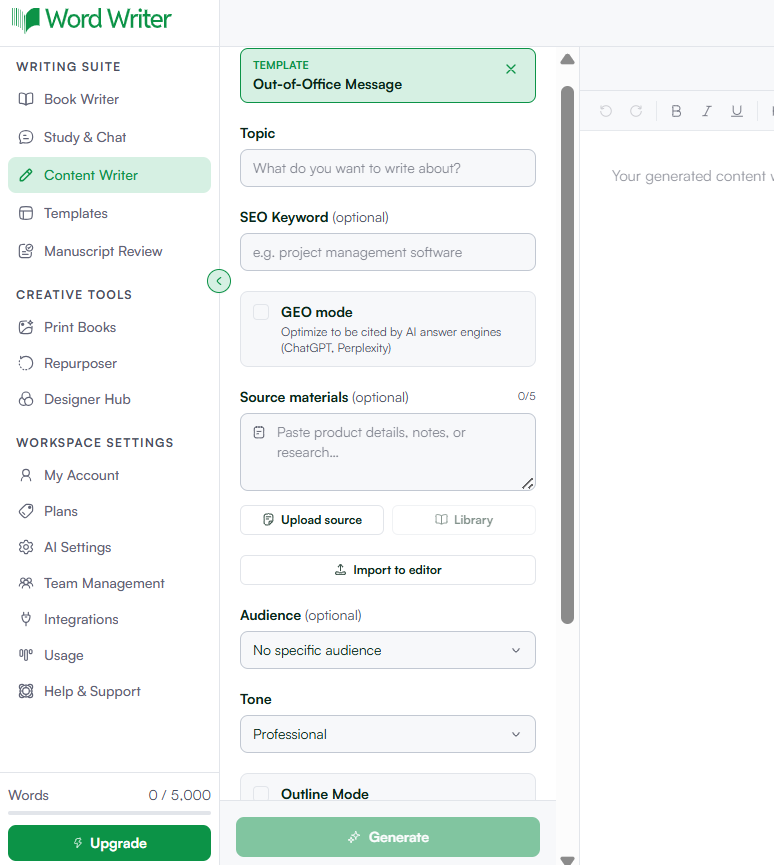
Tap open and provide all the info needed, such as your leave dates, your backup contact, and your preferred tone.
Step 5: Generate Your Message
Tap on Generate. WordWriter will produce a complete out of office message based on the details you provided.
That is it. In under a minute, you have a ready to use message, without staring at a blank page trying to find the right words.
Related: 7 Best AI Writing Tools for Fiction in 2026
What Information to Have Ready Before You Start
To get the best result on your first try, have these details ready before you open the template:
- The dates you will be away
- Whether you will have limited or no access to email
- Who your clients or colleagues should contact in your absence
- Whether you want to include a rough return date or keep it open ended
Having this ready means WordWriter can generate a complete, accurate message the first time, instead of needing several rounds of edits during an already busy time.
Choosing the Right Tone
When filling in the template, think about who is receiving this message and what fits your relationship with them:
- Formal — best for client facing roles, legal, finance, or corporate environments
- Friendly and professional — works well for most business relationships, including long term clients
- Warm and personal — suited to close working relationships where a more human touch feels appropriate
For maternity leave specifically, friendly and professional or warm and personal usually feels more natural than strictly formal.
Sample Out of Office Messages Generated With WordWriter
Client facing:
Thank you for your email. I am currently on maternity leave with no access to email. For any urgent matters, please contact Sarah Johnson at [email protected]. I appreciate your patience and look forward to reconnecting when I return.
Warm and personal, for internal team:
Hi there, thanks for reaching out. I am on maternity leave starting today and will be fully offline. Sarah has kindly agreed to cover anything urgent, so please reach out to her at [email protected]. I will catch up on everything when I am back.
Tips for Better AI Generated Out of Office Messages
- Set this up before your last day, not on it. Give yourself time to review the generated message rather than rushing it right before you leave.
- Keep your backup contact informed. Make sure whoever you list as the point of contact knows they are listed and is prepared to field messages.
- Decide how much to share, and stick to it. You do not need to explain your leave in detail. A simple, warm message is enough.
- Save the message as a template. If you plan to send updates or reminders closer to your return, having the original saved in WordWriter makes it easy to reuse or adjust.
Final Thoughts
Going on maternity leave comes with enough to plan for, without adding “write the perfect out of office message” to your list. With WordWriter’s template library, you can go from sign in to a finished message in five simple steps.
Set your message, hand things off to your backup contact, and go take care of what matters most. WordWriter has your out of office message covered.
Want me to look through the rest of the article for other spots where the phrasing feels like a stretch, or was that the main one you caught?
