
How to Create Picture Books for Kids with AI
It is late at night, your child is tucked in bed, and you are reading them a story from a book you picked up at the store. Somewhere in the middle of it, a thought crosses your mind: “I wish I could write a story about a little blue bear who loves eating jollof rice, just like my son.”
The idea is right there. It is clear, it is sweet, and it is deeply personal. But then the next thought comes in: “I am not an artist. I cannot paint. I have never published anything.” And just like that, the story stays in your head.
That is the exact problem that learning how to create picture books for kids with AI solves. You do not need a single design skill or a publishing deal. All you need is your idea, and a tool like WordWriter to bring it to life. In this article, we will walk you through exactly why this matters and how to do it step by step.
Let’s dive in.
Related: How to Create a Cookbook Using AI: A Complete Guide
Why Creating Kids’ Picture Books with AI Is a Game-Changer
Not long ago, making a children’s book from scratch was an expensive, complicated process. You had to hire an illustrator, wait months for sketches, and hope the main character looked the same on every single page. For most parents and everyday storytellers, it simply was not realistic.
AI has changed all of that. Here is what makes it such a big deal:
Guaranteed Character Consistency. The tool makes sure your character looks exactly the same from the first page to the last. No mismatched faces, no random changes in outfit or colour. Every illustration stays true to the one you started with.
Instant Illustrated Spreads. Instead of waiting weeks for artwork, you get beautifully illustrated, read-aloud spreads instantly. This alone saves you thousands of dollars in art commissions.
Total Personalization. You can write a story around your child’s name, their favourite animal, a family tradition, or a life lesson you want them to learn. The story belongs to your family in a way that no store-bought book ever could.
Print-Ready Formats. WordWriter builds your book using industry-standard dimensions, so when you are done, you can upload it directly to self-publishing platforms like Amazon KDP without any extra formatting work.
Step-by-Step: How to Design a Picture Book on WordWriter
You will not need any graphic design software. You will not spend hours trying to get an image generator to cooperate. WordWriter has a built-in system that walks you through the entire process from start to finish. Here is how it works.
Step 1: Log In and Open the Creative Studio
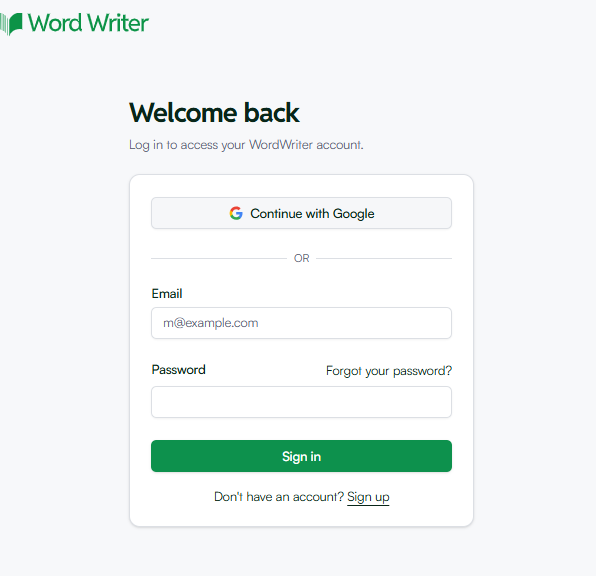
Go to the WordWriter website and log in to your dashboard.
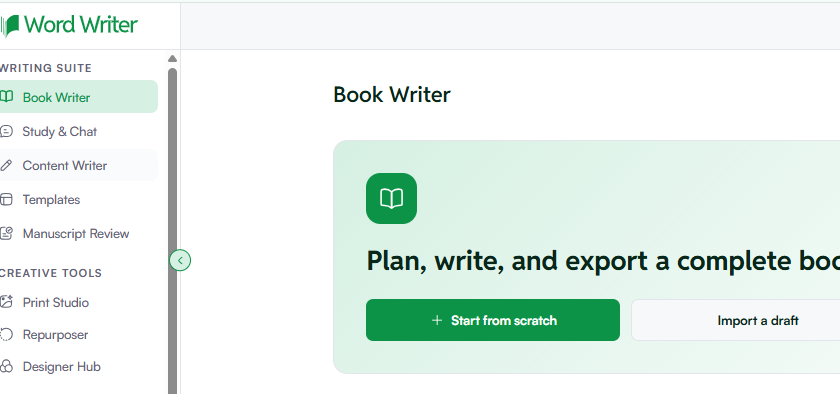
On the main navigation menu, look for the Creative Tools section.
Step 2: Enter the Print Studio
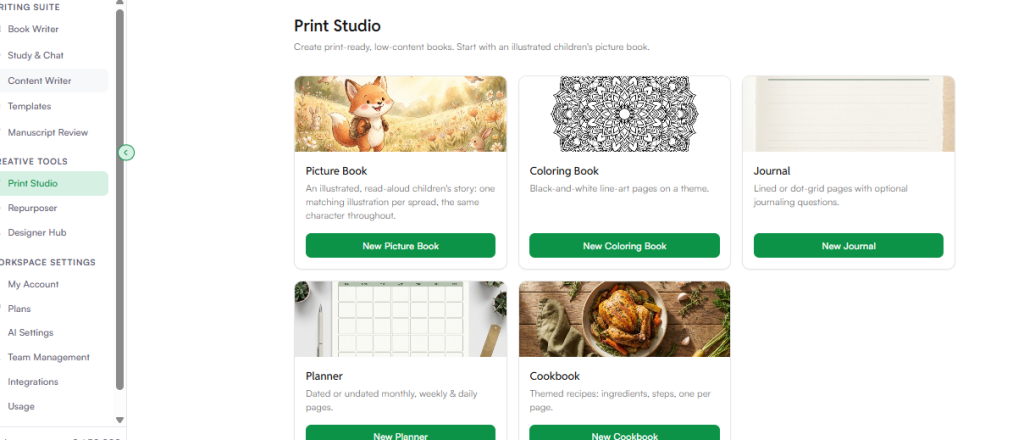
Inside the Creative Studio menu, click on Print Studio. This is the dedicated workspace built for creating physical books and print media. When you land inside the Print Studio, you will see several creation options waiting for you:
Picture Book: An illustrated, read-aloud children’s story with one matching illustration per spread and the same character carried all the way through.
Coloring Book: Black-and-white line-art pages built around a theme of your choice.
Journal: Lined or dot-grid pages with optional journaling prompts.
Planner: Dated or undated layouts covering monthly, weekly, and daily pages.
Cookbook: Themed recipe pages with ingredients and steps, formatted one recipe per page.
For now, click “New Picture Book” to get started.
Step 3: Customize Your Book Settings
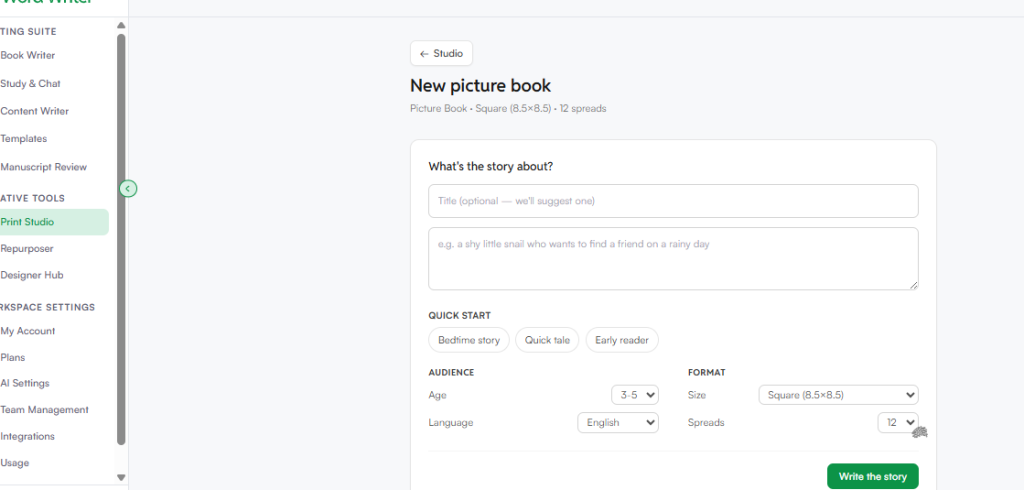
Once you click into the New Picture Book dashboard, a simple setup wizard will appear. The default starting point is a classic square layout at 8.5 by 8.5 inches with 12 spreads, but you can adjust everything to fit your exact vision. Here is what you will fill in:
- What is the story about? Write a short summary of your idea. It does not need to be perfect. Something like, “An adventurous little puppy named Max who loses his favourite red ball in a magical backyard garden” is more than enough to get things moving.
- Quick Start Presets. Choose the kind of story you want to create. Your options are Bedtime Story, Quick Tale, Early Reader, or a custom narrative depth if you want more control over the pacing.
- Audience Age. Pick the reading level that matches your child. WordWriter offers two clean options: Age 3 to 5, or Age 6 to 8.
- Language. Choose the language your family speaks. WordWriter supports a wide global list including English, Spanish, French, German, Portuguese, Italian, Dutch, Polish, Turkish, Swedish, Japanese, and Indonesian.
- Format Size. Choose the physical shape of your book. You can go with Square at 8.5 by 8.5 inches, Portrait at 8 by 10 inches, US Letter at 8.5 by 11 inches, US Letter Landscape at 11 by 8.5 inches, or 7 by 10 inches.
- Spreads. Choose how many pages or spreads you want the story to run across.
One great thing worth knowing: the setup wizard works almost the exact same way whether you are making a journal, a planner, or a cookbook. The layout adapts automatically depending on which format you pick.
Step 4: Refine in the Smart AI Editor
Once you hit generate, WordWriter’s layout engine goes to work immediately. It writes the narrative or rhyming text for each spread and places a perfectly matched, high-resolution illustration right alongside it.
When your draft is ready, open it inside the Smart Editor. From there you can tweak the wording, adjust your character’s appearance, or add a personal dedication page before the story begins.
Step 5: Export and Print
When the story feels exactly right, download your finished book. WordWriter exports in high-quality print formats, so your file is completely ready to send to a local print shop or upload to any print-on-demand service online.
Related: 8 Best AI picture Book illustrator in 2026
Conclusion
Your child deserves a story written just for them, and you are more than capable of creating one. WordWriter makes the whole process simple by connecting your imagination directly to professional book publishing, no art degree or publishing house required.
All you have to do is log in, head to the Print Studio, fill in your presets, and let the tool do the heavy lifting. From a single idea to a fully illustrated storybook, the whole thing can happen in just a few minutes.
Stop letting those beautiful bedtime stories stay stuck in your head. Log in to WordWriter tonight and publish your first picture book.
Ready to see your child’s face light up when they read a book written just for them? Head over to WordWriter, open the Print Studio, and start your first Picture Book spread right now.
