
How to Use AI to Write a Screenplay (Step-by-Step Guide)
Writing a screenplay is one of those things that sounds exciting until you are actually staring at a blank document trying to figure out where to start. Most people have a solid concept, interesting characters, a scene that plays out vividly in their imagination, but the moment they sit down to write it out in proper screenplay format, things fall apart. That gap between the idea and the page is exactly where AI tools like WordWriter come in.
This guide walks you through everything, from understanding basic screenplay structure to using WordWriter’s screenplay scene template to get a formatted first draft out of your head and into an editor.
What Is a Screenplay and Why Does Format Matter?
Before jumping into the tool, it is worth knowing what you are actually producing. A screenplay is not a story written like a novel. It is a technical document, a blueprint for a production, and every element on the page has a specific purpose and placement.
The six core elements every screenplay uses are the scene heading (also called a slug line), action lines, character name, dialogue, parentheticals, and transitions. The scene heading opens every new scene and tells the reader three things: whether the action is taking place indoors or outdoors, where the scene is set, and what time of day it is. It is always written in all caps, for example: INT. COFFEE SHOP – DAY or EXT. ROOFTOP – NIGHT.
Action lines follow the scene heading and describe what the audience is seeing. They should be short, concise, easy to visualize, and should move the characters and plot forward. Think of action lines as a camera operator’s instructions, describe only what can be seen or heard on screen, nothing internal.
Dialogue is what characters say, formatted in the centre of the page directly under the character’s name written in capital letters. Parentheticals, the s#mall directions in brackets under a character’s name, should be used sparingly. They are there to clarify delivery when it would not otherwise be obvious from context.
Most screenplays follow a three-act structure: setup, confrontation, and resolution. A feature film script typically runs between 90 and 120 pages, with roughly one page equaling one minute of screen time.
That said, you do not need to memorize all of this before you start. AI handles a lot of the formatting and structural thinking for you, especially when you use a purpose-built template.
Why Use AI for Screenplay Writing?
There is a right and a wrong way to write a screenplay with AI. The wrong way is relying too heavily on it and losing your creative agency. The right way is using it to find a middle ground that allows you to collaborate with AI step by step.
AI tools act as collaborators, assisting with tasks such as generating ideas, developing characters, refining dialogue, and ensuring proper formatting. What this means practically is that you still bring the story, the characters, the emotional core, and the vision. The AI does the heavy lifting on structure, phrasing, and getting things onto the page in the right format.
The key advantages are structured storytelling since AI understands screenplay format including acts, dialogue, and scenes, the ability to break through writer’s block by generating creative ideas when inspiration fades, and saving hours of writing by handling repetitive or technical formatting work.
For someone with a strong idea but no screenwriting background, this is especially valuable. Instead of spending weeks learning formatting rules before writing a single scene, you can use a template, enter your concept, and see it take shape in minutes.
How to Use AI to Write a Screenplay – Getting Started on WordWriter
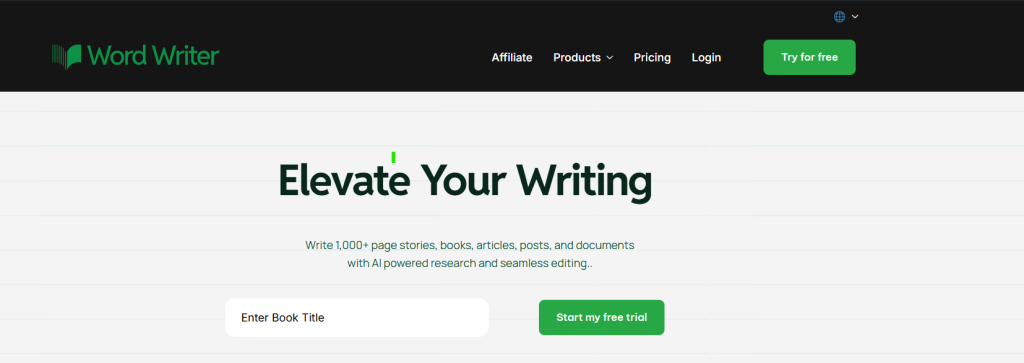
Head to wordwriter.co and create your account. The sign-up process is straightforward and once you are in, your dashboard gives you access to everything you need.
WordWriter is built to handle long-form creative content, with AI designed for structure, coherence, and long-form continuity. It supports creating story outlines, turning ideas into chapters, and keeping characters, plot details, tone, and world-building consistent across your entire project. For screenplay work specifically, the template library is where you want to start.
Finding the Screenplay Scene Template
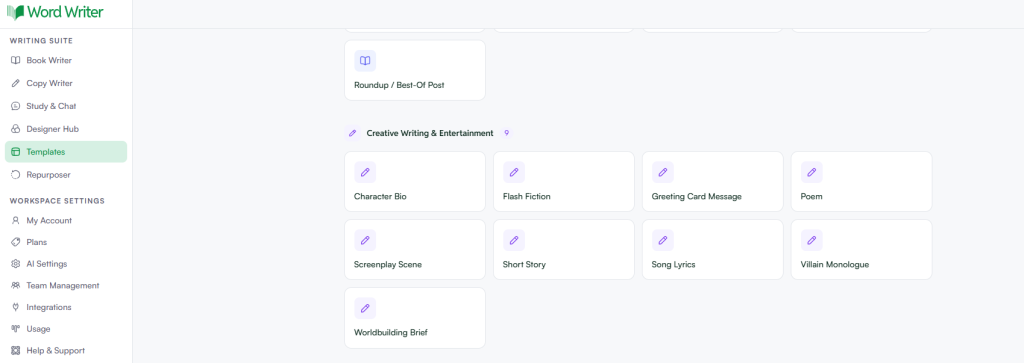
Once you are logged in, look to the left side of your screen. You will see the navigation panel there. Tap on Templates.
WordWriter has a library of templates organized by content type and industry. Scan through the categories until you find Creative Writing / Entertainment. Inside that section, you will see the Screenplay Scene template. Tap to open it.
This template is designed specifically for cinematic writing. It prompts you to enter the right information in the right order, so you are not starting from scratch trying to figure out what to include.
How to Fill In the Template
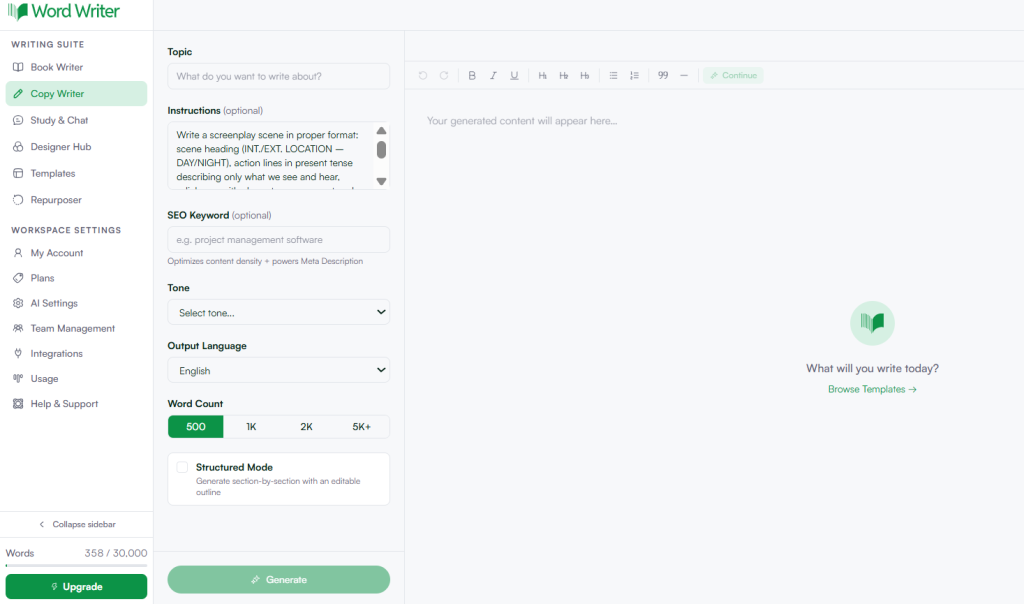
This is where you actually shape your screenplay. The template guides you through each input field, and what you put in directly affects what comes out, so take a few minutes to be deliberate here.
Your Topic
Start with your topic or scene concept. What is this scene about? Who is in it? What is the central conflict or moment? You do not need a fully developed story at this point, but the more specific you are, the better your output will be. A vague prompt gives a vague result. A detailed one gives you something to work with. Describing the genre, setting, main characters, and the central conflict will produce something substantially more usable.
For example, instead of typing “a breakup scene,” try something like “a heated breakup in a Lagos restaurant, a couple in their early 30s, one of them has been hiding a job loss for months and tonight it finally comes out.”
Your Tone
The tone field tells the AI how the scene should feel. This could be dramatic, tense, bittersweet, comedic, suspenseful, or anything in between. Be honest about the emotional register you want. If you are writing a thriller, say tense or menacing. If you are writing a family drama, lean into emotional or raw.
Keywords
Use this field to add specific words, phrases, themes, or character names you want woven into the output. Keywords help anchor the AI to your specific story rather than producing something generic.
Output Language and Word Count
Choose your preferred output language and set your word count based on how long the scene should run. Keep in mind that roughly one page of properly formatted screenplay equals one minute of screentime, so calibrate your word count to how much screen time you want the scene to take up.
Turn On Structured Mode
Before you hit Generate, look for the Structured Mode option and turn it on. This is one of the more useful features in the template because it organizes your output into clear distinct sections rather than a single continuous block of text.
For screenwriting, this matters. Scenes have natural parts: the setup, the escalating action, the dialogue exchange, the turn or payoff. Structured mode keeps those parts organized from the start, which makes your editing process much cleaner.
Generate Your Screenplay
Tap Generate. WordWriter processes your inputs and produces a screenplay scene based on everything you entered. The output lands directly in the Editor tab on your dashboard.
What you will get is a formatted scene draft that follows standard screenplay conventions, with scene headings, action lines, character names, and dialogue all laid out correctly. It is not a finished product, but it is a real starting point, not a blank page.
Editing Your Draft in the Editor Tab
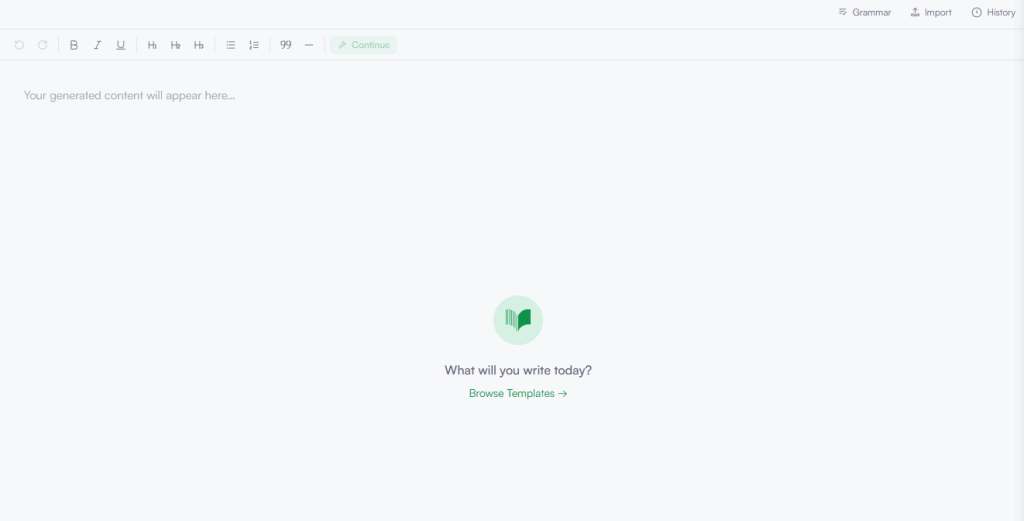
The Editor tab is where your screenplay lives from here. This is also where your creative judgment kicks back in fully.
Read through the generated scene carefully. Pay attention to whether the dialogue sounds like your characters or whether it has drifted into something generic. Action lines should be lean and visual, and these days the shorter and more concise your action lines are the better. If you have long descriptive paragraphs, cut them down. Every line in a screenplay should be earning its place.
Look at your dialogue for subtext. Good screenplay dialogue rarely says exactly what the character means. Read your lines aloud. If they sound like someone explaining the plot rather than two people talking, rewrite them.
Check your scene headings. Make sure every new location change is properly headed. If your scene moves from inside to outside, that needs its own slug line.
Once your scene is in shape, you can generate additional scenes using the same template, building out your screenplay section by section until you have a full draft assembled in the editor.
Tips for Getting Better Output from the Template
The quality of your screenplay draft is directly tied to how well you fill in the template. A few things that help consistently.
Be Specific About Your Characters
Instead of “two friends arguing,” try “Marcus, 28, a broke musician trying to hide his pride, and his younger sister Adaeze who has been quietly supporting him for two years.” That specificity feeds better dialogue and more grounded action lines.
Name Your Genre and Reference Points
If you are writing a psychological thriller, say so. If your tone and pacing are inspired by a specific style of filmmaking, mention it. The more context the AI has about the world your story lives in, the more on-point the output will be.
Use Structured Mode for Longer Scenes
If you are writing something with multiple beats, a scene that starts with tension, escalates through dialogue, and ends with a revelation, structured mode keeps each part clean and readable rather than blending everything together into one block.
Treat the First Draft as Raw Material
Do not accept the first output as final. Your job in the editor is to find the good lines, cut the weak ones, and make the whole thing sound like it was written by someone who actually knows these characters. The AI gives you a foundation. What you build on it is entirely yours.
What to Do After Your First Scene
Once you have a scene you are happy with, the next step is building around it. Most screenwriters work from an outline, a beat sheet that maps out the key moments in each act before writing individual scenes. If you already have an outline, use it to guide which scene you generate next. If you do not, use the template itself as a thinking tool. Writing several scenes separately and then reading them together can help you understand your story’s shape before you commit to a full structure.
The process works best when AI guides you through every stage, from brainstorming ideas and crafting character backgrounds through writing outlines and down to generating the actual scenes. WordWriter supports that kind of layered workflow, and the editor gives you a single place to pull everything together as your project grows.
The screenplay that has been living in your head does not need to stay there. The tools exist, the process is straightforward, and the blank page problem is a lot easier to solve than it used to be.
