
How to Create Monthly Planners with AI
Have you ever tried planning your month, only to realize your planner doesn’t fit your needs?
Maybe there isn’t enough space for your daily tasks. Maybe you want a habit tracker, but your planner doesn’t have one. Or perhaps you need a simple weekly layout, but the one you bought is too crowded.
It can be frustrating to spend money on a planner that doesn’t work for your lifestyle.
The good news is that you don’t have to settle for a one-size-fits-all planner anymore.
With AI, you can create a planner that is designed just for you. You choose the layout, the dates, the size, and everything else you need. Best of all, you can do it in just a few minutes.
In this guide, you’ll learn how to create monthly planners with AI, why custom planners are better than generic ones, and how to build your own planner using WordWriter.
Let’s get started.
Related: How to Create a Journal Using AI
Why a Custom Planner Makes Life Easier
Everyone plans their day differently.
A student has different needs from a business owner. A parent plans differently from a freelancer. So why should everyone use the same planner?
A custom planner helps you stay organized because it is built around your routine.
Here are a few reasons why it makes a big difference.
It Fits Your Daily Routine
Instead of trying to adjust your life to match your planner, your planner is designed to match your life.You can include space for daily goals, weekly plans, appointments, habit tracking, note-taking, or anything else you use every day.
It Saves You Time
Drawing planner pages by hand takes a lot of time.With AI, everything is created for you automatically. Your planner is ready within minutes.
It Helps You Stay Organized
When your planner has exactly what you need, it becomes easier to keep up with your schedule and achieve your goals.
It Saves Money
Instead of buying different planners every year, you can simply create and print the one that works best for you.
Related: How to Create Coloring Book for Kids Using AI: The Ultimate Guide
How to Create Monthly Planners with AI Using WordWriter
1. Login and Open the Creative Studio
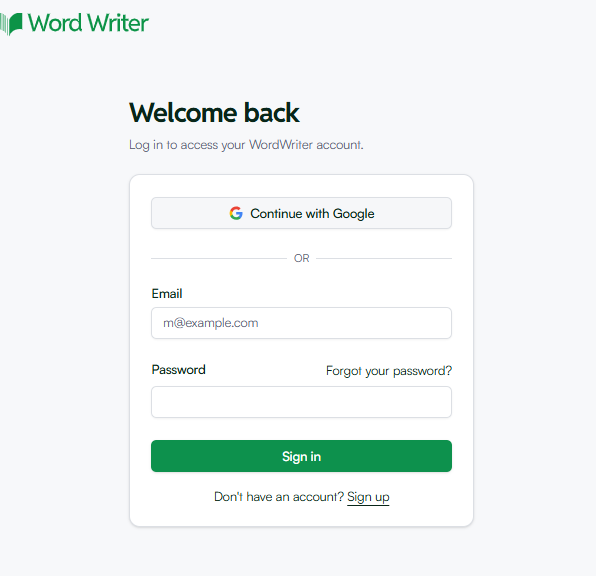
First, head over to the main website and login to your dashboard. Look at your navigation menu and find the Creative Tools section.
2. Enter the Print Studio
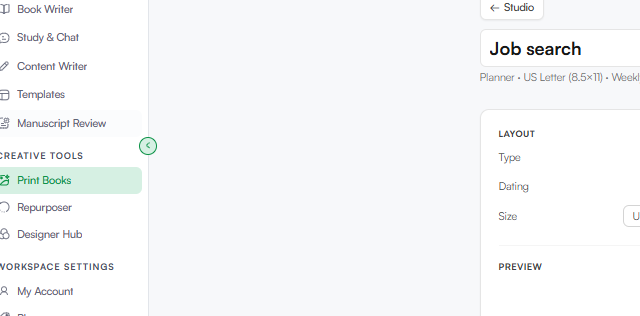
Directly under the Creative Studio, click on the Print Books option. This is the workspace built for physical media assets. Inside, you’ll find the layout tools for Picture Books, Coloring Books, Journals, and Cookbooks. Go ahead and click “Planner” to open the wizard.
3. Customize Your Planner Settings
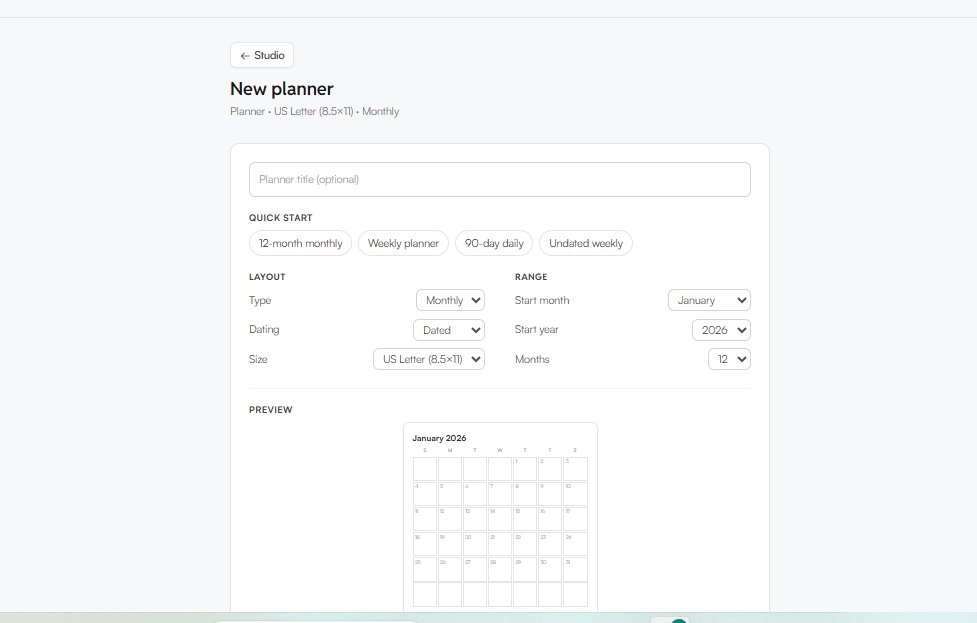
This is where you lock in the exact structure of your organizer. You will see a comprehensive layout menu where you can click and select your options:
- Quick Start Presets: Choose your core layout pacing. Options include 12-month monthly, Weekly planner, 90-day daily, or Undated weekly.
- Layout Type: Select the primary focus blocks for your pages—choose between Monthly, Weekly, or Daily.
- Dating: Decide if you want it tied to specific calendar days or open-ended by picking Dated or Undated.
- Size: Choose the physical size of your printed book. The options are US Letter (8.5×11), 6×9, or 8×10 (portrait).
- Range & Timeline: Set your schedule boundaries precisely:
- Start Month: Select any month from January through December.
- Start Year: Lock in your chronological timeline, starting from 2026 up to 2032.
- Months Duration: Decide how thick the notebook will be by choosing a range from 1 to 12 months.
- Live Preview: As you change your settings, a dynamic live preview box updates on your screen (for example, showing the exact grid layout for January 2026 with all the correct days of the week).
4. Generate and Polish in the Editor
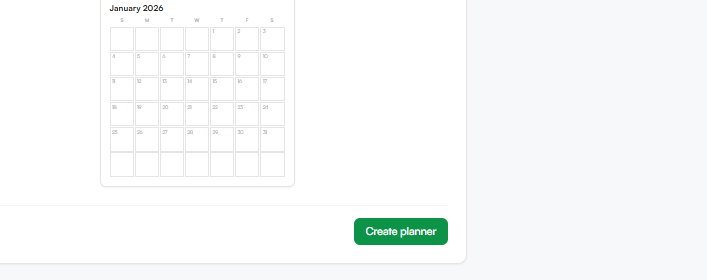
Click the Create Planner button. WordWriter’s design engine will instantly compile your formatted grids, dated day blocks, and optional habit trackers into a beautiful, seamless document. Pop it open in the Smart Editor to add custom motivational quotes, personal goals, or specialized sections for your specific projects.
5. Export and Print

When your custom organizer looks exactly the way you want, click download. WordWriter allows you to export your planner in high-quality print formats as a downloadable PDF , making it completely ready to be printed at home, bound at a local shop, or uploaded for physical printing.
Conclusion
A planner should make your life easier, not more stressful.
Instead of trying to fit your schedule into a planner made for everyone, create one that is made just for you.
With WordWriter, you can design a custom monthly planner in minutes. Choose your layout, select your dates, add the sections you need, and download a planner that fits your lifestyle perfectly.
If you’re ready to stay more organized, log in to WordWriter, open Print studio, and create your first custom planner today.
