
How to Write Social Media Content Faster Using WordWriter
Social media writing is one of the most time-consuming parts of any content workflow. You need captions, scripts, threads, carousels, podcast show notes, and more, often for multiple platforms at the same time. And the demand never stops. Audiences expect consistent, high-quality content across every channel, every week, without any dip in quality or relevance.
The problem is that most content creators and marketers are already stretched thin. Writing platform-specific copy from scratch takes hours, and generic AI tools often produce content that sounds robotic, off-brand, or completely disconnected from how real people communicate online.
WordWriter changes that. With a dedicated set of AI-powered social media content templates, WordWriter helps you go from blank page to ready-to-publish copy in minutes, without sacrificing quality or your brand voice. This guide walks you through exactly how to use it, step by step.
How to Write on Social Media Using Wordwriter
Step 1: Sign Up for WordWriter
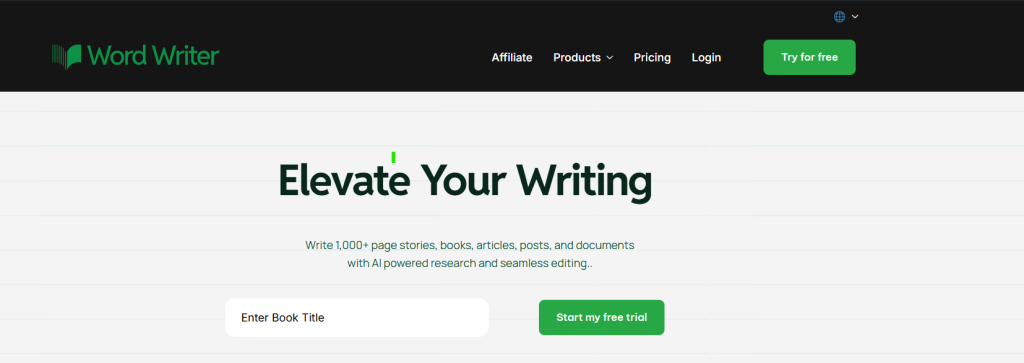
Head over to wordwriter.co and create your free account. The signup process is quick and straightforward. Enter your email address, set a password, and verify your account. Once you are in, you will land on the main dashboard where all your tools and templates are accessible from one clean interface.
If you already have an account, simply log in to pick up where you left off. Your previous projects and generated content will be waiting for you.
Step 2: Navigate to the Templates Section
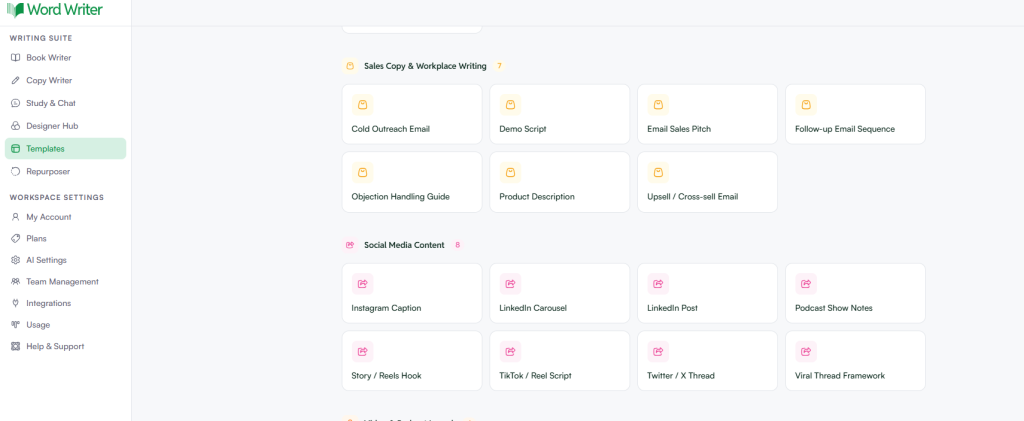
After logging in, look for the Templates option in the main navigation or sidebar. Click on it to open the full templates library. WordWriter organizes its templates by use case, so you will see categories covering blog writing, marketing copy, email content, and more. This structure makes it easy to find exactly what you need without scrolling through tools that are not relevant to your current task.
Step 3: Search for Social Media Content
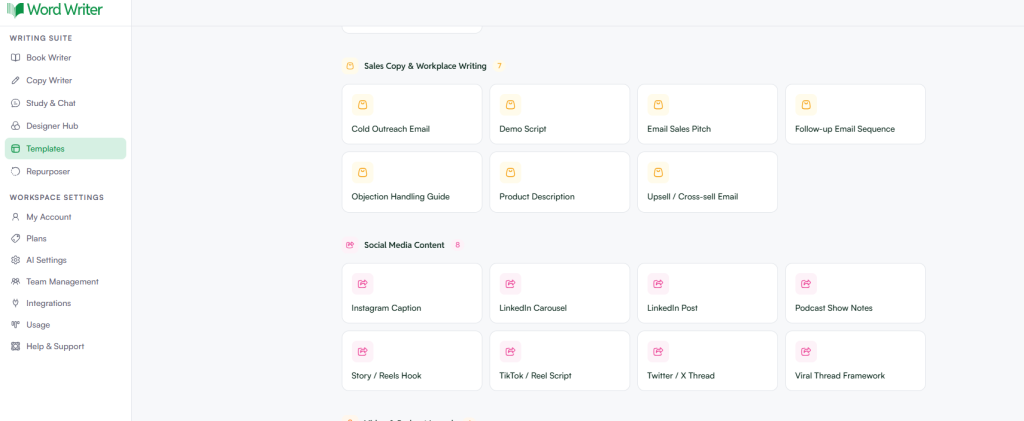
In the templates library, use the search bar to type “social media” or scroll through the categories until you find the Social Media Content section. You will see it labeled clearly with a count of available templates. Currently, there are eight templates covering all the major social media content formats, each one built for a specific platform and content type.
Step 4: Choose Your Social Media Template
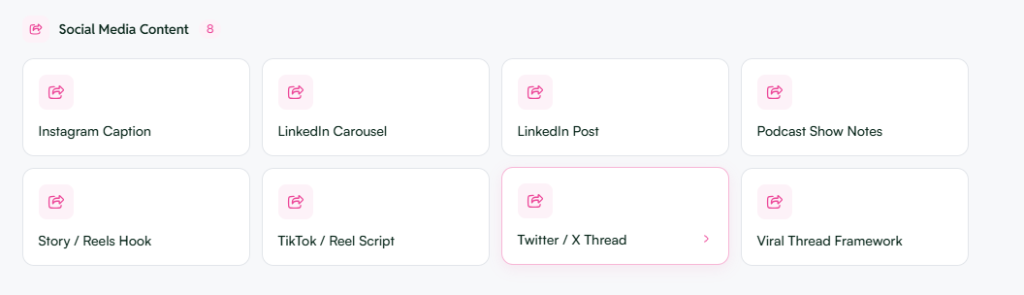
Once you open the Social Media Content section, you will find eight purpose-built templates to choose from. Here is what each one does:
- Instagram Caption is designed for short, punchy captions that stop the scroll and prompt your audience to engage, save, or share.
- LinkedIn Carousel helps you structure multi-slide carousels that educate, inform, or tell a story in a format that performs consistently well on LinkedIn.
- LinkedIn Post is built for longer, more professional posts that hold attention in the LinkedIn feed and position you as a credible voice in your industry.
- Podcast Show Notes takes your episode topic and key talking points and turns them into clean, structured show notes that are ready to publish on your website or podcast platform.
- Story or Reels Hook is designed to generate attention-grabbing opening lines for Instagram and Facebook Stories or Reels. The first three seconds decide everything on short-form video, and this template helps you nail them.
- TikTok or Reel Script gives you a complete short-form video script including your hook, the body of your content, and a clear call to action. You get a full structure to film from, not just a caption.
- Twitter or X Thread is built to help you write cohesive multi-tweet threads that build an argument, break down a concept, or tell a story from start to finish without losing momentum.
- Viral Thread Framework is a structured template that takes the guesswork out of thread writing. It helps you construct threads with the pacing and framing that tend to drive high reach and engagement across Twitter and LinkedIn.
- Pick the template that matches the content type you need to create and click to open it.
Step 5: Fill in Your Details
After selecting a template, you will be prompted to provide the key inputs. This typically includes your topic, your brand tone, your target audience, and any specific points you want the content to cover. Think of this step as briefing a writer. The more specific and intentional you are here, the stronger and more on-brand the output will be.
WordWriter uses your inputs to generate content tailored to your brief rather than producing generic copy that could belong to any brand. If you have a particular angle, a key message, or a specific call to action in mind, include it in this step.
Step 6: Generate and Review Your Content
Click generate and WordWriter will produce your social media content in seconds. Read through the output carefully and check that it aligns with your voice, your platform strategy, and your goals. You can regenerate the content if you want a different angle or tone, or you can edit the output directly within the platform.
For templates like the LinkedIn Carousel or Twitter or X Thread, the content will already be structured into individual slides or tweets. This saves you the additional formatting work that usually eats into your time after generation.
Step 7: Copy and Publish
Once you are satisfied with the content, copy it from WordWriter and paste it directly into your scheduling tool, CMS, or social media platform. There is no complicated export process or reformatting required. The output is clean, plain text that works everywhere.
Why WordWriter Works for Social Media Writing
Writing for social media is not just about speed. Each platform carries its own tone, format, and audience expectations. A LinkedIn post reads differently from a TikTok script. A Reels hook requires a different energy than podcast show notes. A viral thread follows a completely different structure than an Instagram caption.
Generic AI tools tend to flatten those differences. WordWriter’s templates are built with platform-specific nuances in mind, so the content you generate actually fits the space it is going into.
Whether you are a solo creator managing your own channels, a content marketer handling multiple brand accounts, or a social media manager trying to hit a demanding posting schedule, WordWriter takes the heavy lifting out of the writing process. You spend less time staring at a blank input box and more time focusing on strategy, community engagement, and the work that actually moves the needle.
Start with one template, run a few tests, and find the workflow that works for you. Once you see how fast the process becomes, it is hard to go back to writing everything from scratch.
