
How to Generate an Executive Summary Using AI
An executive summary is often the most-read part of any report, proposal, or business document, and the hardest to write well. It needs to capture the core message, key findings, and recommendations in a way that’s clear enough for a busy reader to grasp in under two minutes. Writing one from scratch usually means going back over your entire document, pulling out the highlights, and condensing them without losing meaning.
AI makes this process dramatically faster. With WordWriter’s Content Writer and its built-in Executive Summary template, you can turn a long report, proposal, or set of notes into a polished summary in just a few steps. Here’s exactly how to do it.
What is an executive summary and why does it matter?
An executive summary is a short, standalone section that gives readers the essence of a longer document without requiring them to read the whole thing. It typically covers the purpose of the document, the key findings or main points, and any recommendations or next steps.
Executives, stakeholders, and decision-makers often rely on this section alone to decide whether to dive into the full report or take action based on it. A weak executive summary can bury your best insights. A strong one makes your work easy to act on.
Related: How to Create a Compelling Press Release With AI
What you’ll need before you start
Before opening WordWriter, gather the following:
- The full document, report, or notes you want summarized
- A clear sense of who will be reading the summary
- The tone that fits your audience, whether formal, professional, or conversational
- An idea of how long the final summary should be
Having these ready means the AI has everything it needs to generate a summary that’s accurate and on-target the first time.
How to Generate an Executive Summary Using AI
Step 1: Access the WordWriter platform
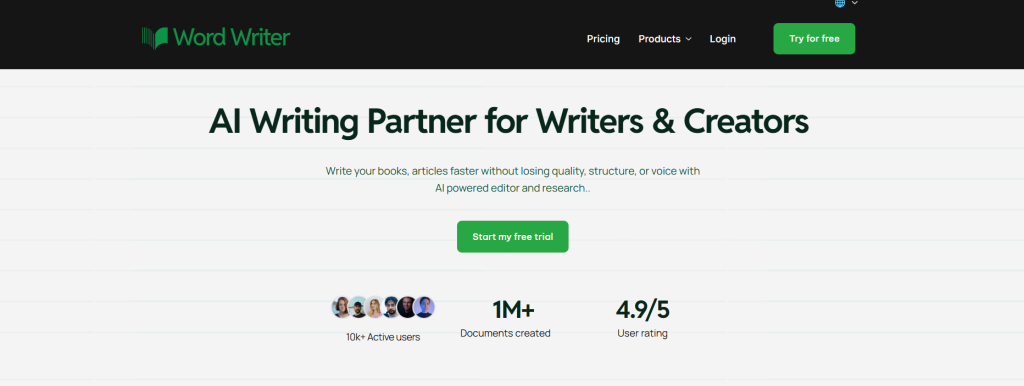
Log into your WordWriter account and head to the dashboard. From the sidebar under Writing Suite, select Content Writer. This is where all of WordWriter’s content generation templates live, including the Executive Summary template you’ll use for this task.
Step 2: Find and select the Executive Summary template
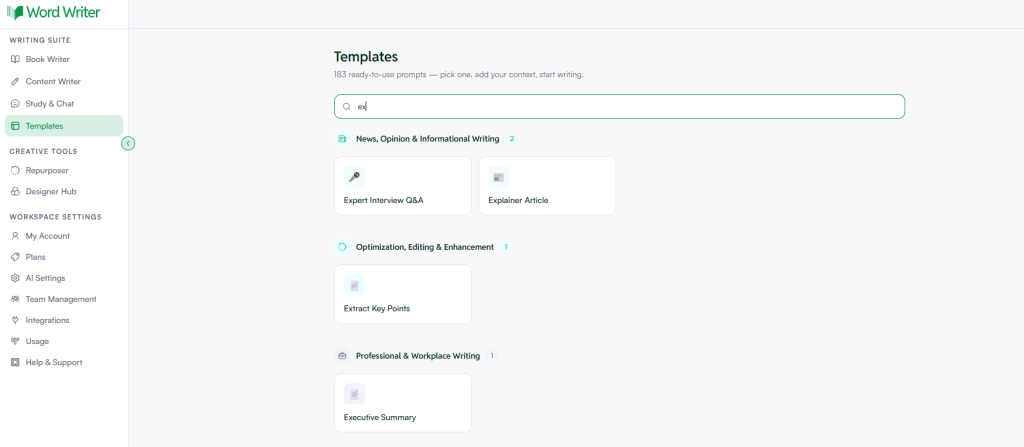
Once you’re in the Content Writer, click Browse Templates. In the search bar, type “Executive Summary” and select it from the results. This loads the Executive Summary template into the sidebar, ready for you to fill in.
Step 3: Fill out the template
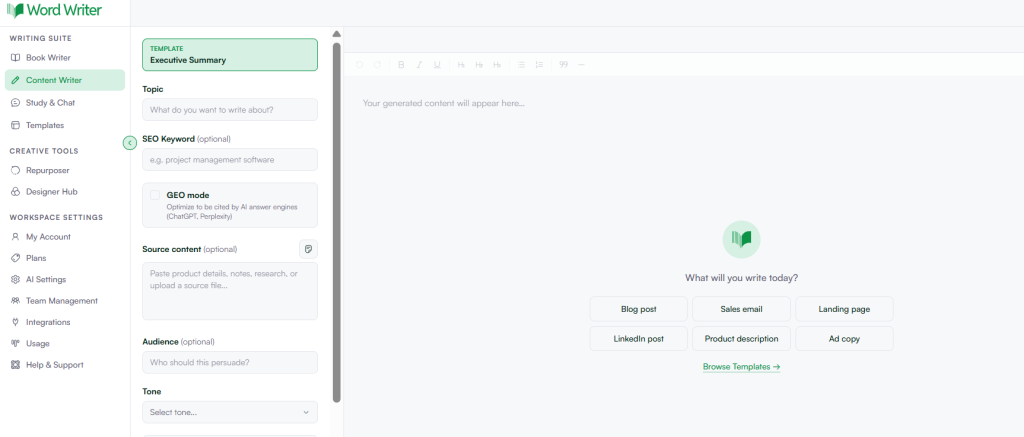
In the Topic field, describe what the executive summary is about. This could be the title of your report, the subject of your proposal, or a short description of the project the summary covers. The more specific you are here, the more focused the AI’s output will be.
- Add your source contentThis is the most important step. In the Source content field, paste the full report, document, or notes you want summarized. WordWriter will use this content as the basis for the summary, pulling out key points, findings, and conclusions directly from what you provide.
If your source material is in a file, you can upload it directly using the upload icon next to the Source content field instead of pasting text. - Specify your audience: In the Audience field, describe who the summary is for. This might be “senior leadership,” “potential investors,” or “department heads.” This helps the AI frame the summary with the right level of detail and the priorities that matter most to that reader.
- Choose your tone: Use the Tone dropdown to select how the summary should sound. For most executive summaries, a professional or formal tone works best, but WordWriter lets you adjust this depending on your audience and document type.
- Set your word count: Executive summaries work best when they’re concise. Choose 500 words for a tight, high-level overview, or 1K if your source document is longer and needs more detail to summarize properly. Avoid going higher than this unless your summary needs to cover multiple sections or topics in depth.
- Use Structured Mode for longer or multi-section summaries: If your document covers several distinct sections or topics, toggle on Structured Mode. This helps the AI organize the summary into clear, logical sections rather than one continuous block of text, which is especially useful for longer reports.
- Add context if needed: If there’s additional information the AI should know, such as specific terminology, company background, or formatting preferences, use the Add Context option to include it. This step is optional but can improve accuracy for specialized or technical documents.
Step 4: Generate your executive summary
Once everything is filled in, click Generate. WordWriter’s AI will process your source content and produce a structured executive summary based on the topic, audience, tone, and word count you specified.
Tips for getting the best results
The quality of your executive summary depends largely on the source content you provide. A clear, well-organized source document gives the AI a much easier job and produces a sharper summary.
Be specific about your audience. An executive summary for investors will emphasize different points than one for an internal team, and naming your audience helps the AI prioritize correctly.
Don’t skip the review step. AI-generated summaries are a strong starting point, but a final human check ensures accuracy, especially for numbers, names, and specific commitments mentioned in the source document.
Why WordWriter makes this easy
WordWriter’s Content Writer is built around templates designed for exactly this kind of task. Instead of writing a prompt from scratch and hoping for the right structure, the Executive Summary template gives you the right fields from the start: topic, source content, audience, tone, and length, all in one place. This means less trial and error and a summary that’s usable on the first try.
Get started
Stop spending hours condensing reports into summaries by hand. With WordWriter’s Executive Summary template, you can turn any document into a clear, professional summary in minutes. Try it free at wordwriter.co and see how much time you can save on your next report.
