
How to Create Social Proof Section with AI
Knowing how to create a social proof section with AI is important if you want to increase conversions, build trust quickly, and encourage hesitant visitors to become customers.
A social proof section, such as customer testimonials, case study highlights, trust badges, or “as seen in” media mentions shows visitors that real people have used and enjoyed your product. However, writing convincing social proof or turning raw customer feedback into clear, engaging landing page content can take a lot of time. An AI-powered writing tool makes the whole process much faster and easier.
In this guide, you’ll learn why social proof is an important part of every landing page, how AI makes writing testimonials easier, and the step-by-step process of creating your own social proof section with WordWriter.
Why Social Proof Is Important for Conversions
Social proof works because people naturally look at what others are doing before making their own decisions. When potential customers visit your website, strong social proof helps remove doubts and gives them confidence that your product delivers on its promises.
Adding a dedicated social proof section is important because:
- It Reduces Buyer Hesitation: Seeing real customer results, star ratings, and honest reviews answers common questions and helps visitors feel more confident before leaving your page.
- It Increases Conversion Rates: Placing customer testimonials close to your call-to-action (CTA) buttons can encourage more people to sign up or make a purchase.
- It Builds Instant Trust: Showing customer logos, media mentions, or user statistics helps your brand look reliable and establishes credibility in your industry.
The Manual Challenge vs. The AI Advantage
Organizing customer feedback by hand often comes with several challenges. Many customer reviews are too long, contain spelling mistakes, or don’t clearly explain the results they achieved. On the other hand, writing testimonial content from scratch can easily sound too general, exaggerated, or unrealistic.
Using WordWriter removes these challenges. Instead of spending hours editing reviews or trying to find the right words, you can simply provide customer feedback, key results, or product benefits. WordWriter’s AI templates will then turn that information into clear, engaging social proof sections designed for your landing page.
Step-by-Step: How to Create a Social Proof Section on WordWriter
Creating a high-converting social proof section with WordWriter only takes a few simple steps:
1. Log In to Your Dashboard
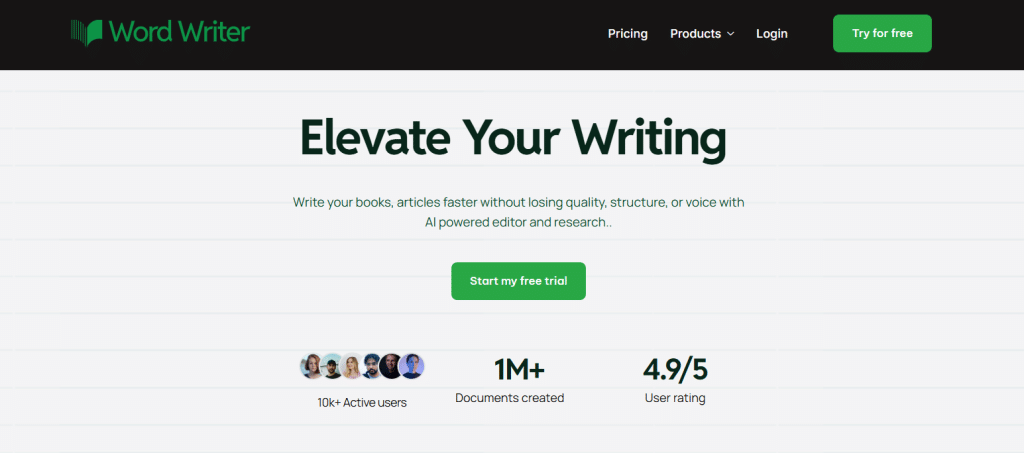
First, visit the official WordWriter platform and log in to access your workspace.
2. Go to Templates
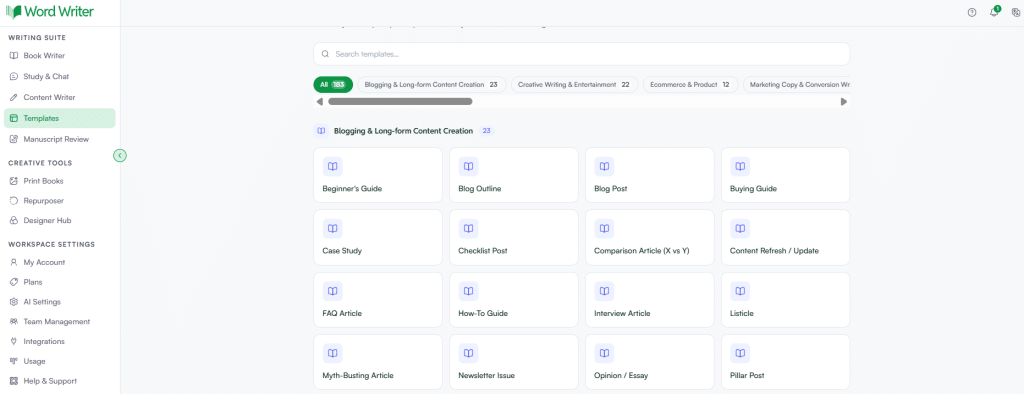
From the menu on the left side of your dashboard, click Templates
3. Search for “Social Proof”
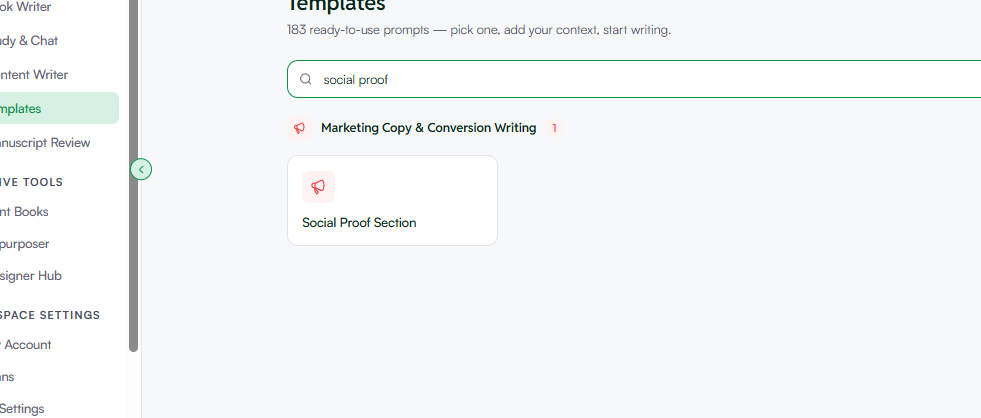
Type “Social Proof” into the search bar, then click the matching template to open the content generation page.
4. Enter Your Product and Customer Information
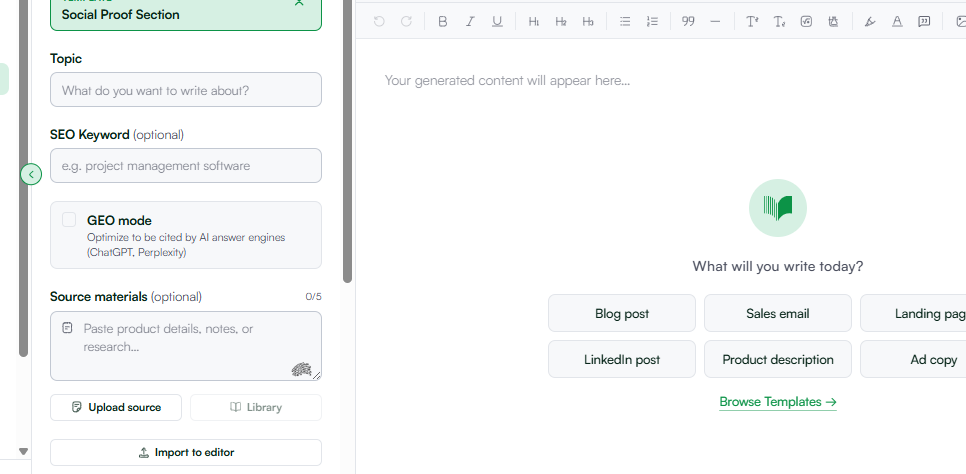
Provide the AI with the information it needs to create convincing social proof:
- Topic/Product Description: Enter your product name and briefly explain what it does (for example, “SaaS project management tool for remote creative teams”).
- Source Content / Customer Feedback (Optional): Paste customer reviews, survey responses, important results (such as “Saved 10 hours a week” or “Increased ROI by 30%”), or customer names and job titles.
- Format Type: Choose the style you want, such as short testimonial cards, mini case studies, star-rating highlights, or trust banner messages.
- Tone: Select Persuasive, Enthusiastic, or Professional so the content matches your brand’s voice.
- The GEO Option: Turn on GEO (Generative Engine Optimization). This helps structure your testimonials and trust statements with clear, entity-focused wording that AI search engines like Gemini, Perplexity, and ChatGPT can better understand when summarizing your brand.
5. Generate, Edit, and Export
Click Generate, and WordWriter will create several social proof options, from short customer quotes to well-structured testimonial sections. You can then open the content in the Editor to make final changes, add real customer names, and copy the finished text directly into your website or landing page.
Related: How to Create a Sales Proposal With AI
Conclusion
Building trust with potential customers doesn’t have to take hours of editing customer reviews or writing sales copy from scratch. WordWriter makes it easy to turn simple customer feedback and product achievements into persuasive social proof sections that encourage more visitors to become paying customers.
With its specialized templates and GEO optimization feature, you can create trustworthy, high-quality testimonial content that strengthens your landing pages in just a few minutes.
Ready to increase your website conversions with powerful trust-building content? Log in to WordWriter today.
