
How to generate FAQs with AI
Imagine running a busy online store where your inbox is overflowing with the exact same questions every single day. “Where is my order?” “What is your return policy?” “Do you ship internationally?” You spend hours typing out the same replies over and over again, leaving you no time to actually grow your business.
Learning how to generate FAQs with AI solves this problem fast. It is the quickest way to build a clear help centre that answers your customers’ questions before they even have to ask. This article will show you exactly how to do that.
A great FAQ section can also boost your sales. In 2026, online shoppers are impatient. If they cannot find an answer in ten seconds, they will leave your site and buy from a competitor. Using a tool like WordWriter makes creating these answers completely effortless. In this article, we will cover why FAQs are a secret sales weapon for e-commerce and walk you through a simple step-by-step guide to generating them with WordWriter.
Let’s dive in!
Why FAQs Are Vital for E-Commerce Success
An FAQ section is much more than a customer service page. It is a powerful tool that helps close deals. When a customer is unsure about buying a product, a good FAQ section can clear up their doubts instantly.
Having an AI-generated FAQ page matters because:
1. It cuts down support tickets. By answering common questions upfront, you can reduce customer support emails by up to 50%.
2. It builds customer trust. A detailed FAQ page shows that you are a professional and transparent business that cares about the shopping experience.
3. It speeds up the sale. If a customer already knows your shipping takes two days because they read it in your FAQ, they will hit that Buy Now button much faster.
4. It helps your Google ranking. Search engines love well-structured FAQs. Writing them with AI can bring more free traffic to your store.
Step by Step: How to Generate E-Commerce FAQs with WordWriter
You do not need to write out dozens of questions and answers by hand. WordWriter has a dedicated tool built specifically for online store owners. Here is exactly how to use it.
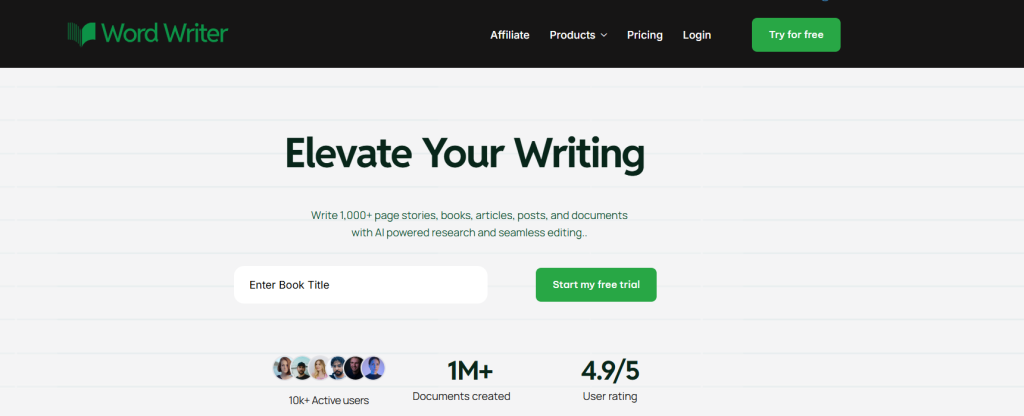
1. Log In to WordWriter
Visit the website and log in to your dashboard. If you do not have an account yet, creating one takes less than a minute.
2. Search for the FAQ Template
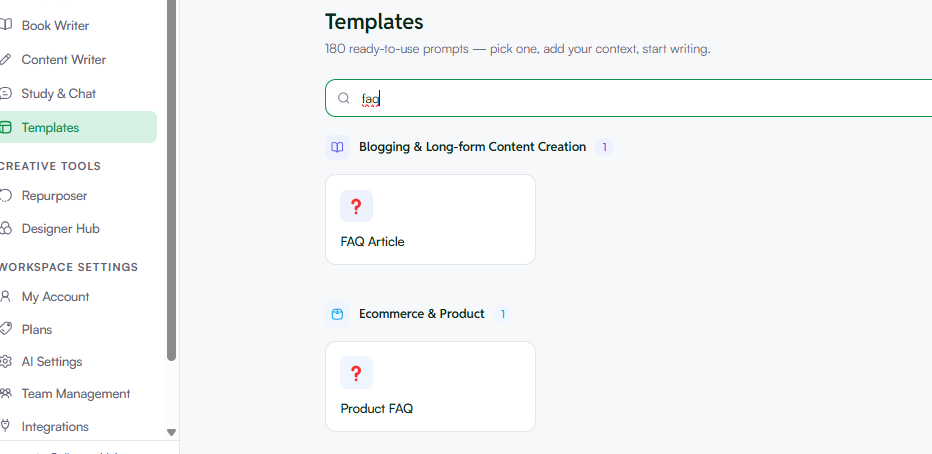
Once you are in your workspace, click on the Template section in the main menu. In the search bar, type “FAQ.” You will see a few options. Select the one made specifically for e-commerce and click on it.
3. Enter Your Prompt and Fill the Quick Presets
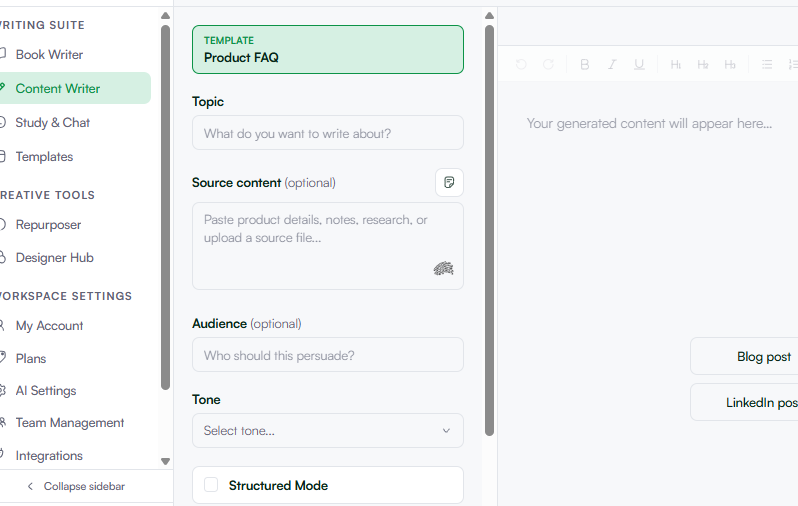
You will see a simple form where you can guide the AI.
Enter your prompt. Type a short description of what your store sells or the policy you want to cover. For example: Write an FAQ section for a clothing store that sells organic cotton hoodies and offers a 30-day return policy.
Fill the quick preset area. Choose your preferred language, adjust the tone (such as Professional, Casual, or Informative), and select your target length.
4. Generate and Polish in the Editor
Click the Generate button. In a few seconds, WordWriter will produce a well-organized list of common customer questions with clear answers. You can then open the Smart AI Editor to add your specific email address, brand name, or custom shipping details.
5. Export in Different Formats
When you are happy with your FAQ section, you do not need to worry about complicated copy-pasting. WordWriter lets you export your content in different formats, whether you need a PDF, a Word document, or plain text ready to drop into your Shopify, WooCommerce, or Wix store.
Conclusion
Your time is too valuable to spend answering the same questions over and over again. WordWriter takes the guesswork out of customer service. By using the e-commerce FAQ template, you can reduce your support workload, clean out your inbox, and give your shoppers the instant answers they need. Stop wasting time on repetitive emails and let AI build your help desk today.
Ready to clean out your support inbox for good? Log in to WordWriter now and generate your e-commerce FAQ page in under two minutes.
