
How to Create SOPs Using AI
Writing standard operating procedures manually is one of those tasks that always gets pushed to the bottom of the list. It matters for consistency and training, but sitting down to document every step of a process in detail takes time most teams do not have.
With WordWriter, you can generate a complete SOP using AI, giving you a clear, structured document in minutes instead of hours.
In this guide, we will walk through exactly how to create SOPs using AI on WordWriter.
Why Use WordWriter for Your SOPs
An SOP needs to be detailed enough that someone unfamiliar with the process can follow it without guessing. That level of detail is exactly what makes writing one manually so time consuming. You have to think through every step, anticipate questions, and format it in a way that is easy to follow.
With WordWriter, you can:
- Generate a structured SOP in minutes instead of writing one from scratch
- Keep formatting and tone consistent across every process you document
- Update or expand sections as your processes change
- Build out a full library of SOPs without burning through your week
How to Create an SOP on WordWriter
Here is exactly how to create an SOP using WordWriter’s AI template, step by step.
Step 1: Sign in to WordWriter
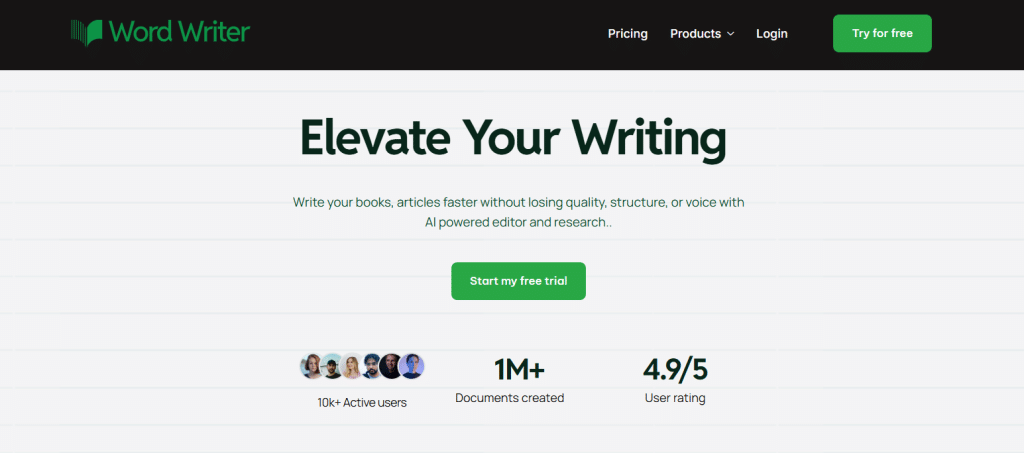
Log into your WordWriter account to access the AI template library.
Step 2: Open Templates
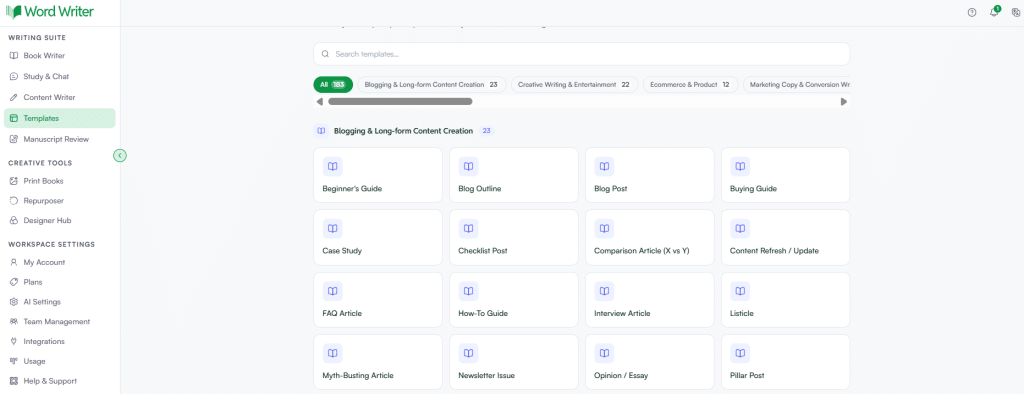
On the left corner of your dashboard, tap on Templates.
Step 3: Search for SOP
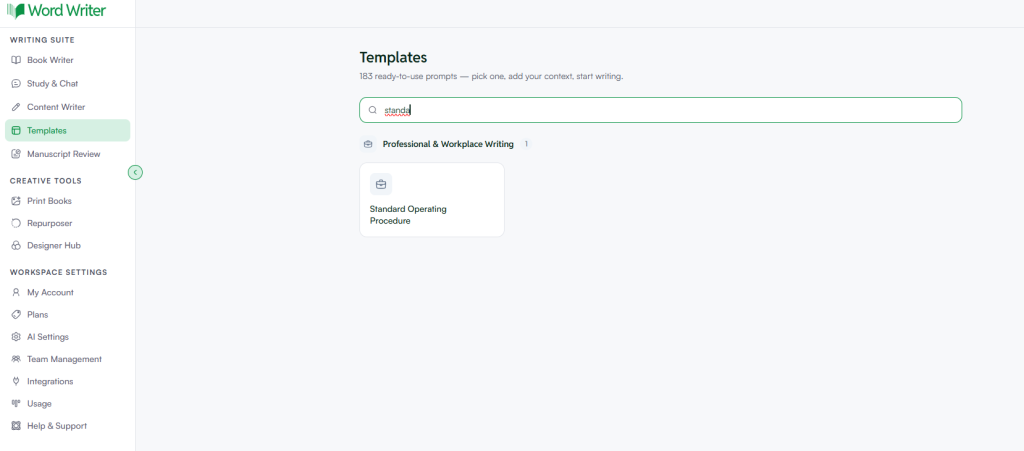
Browse or search for the SOP template within the business documents section.
Step 4: Open the Template and Add Your Details
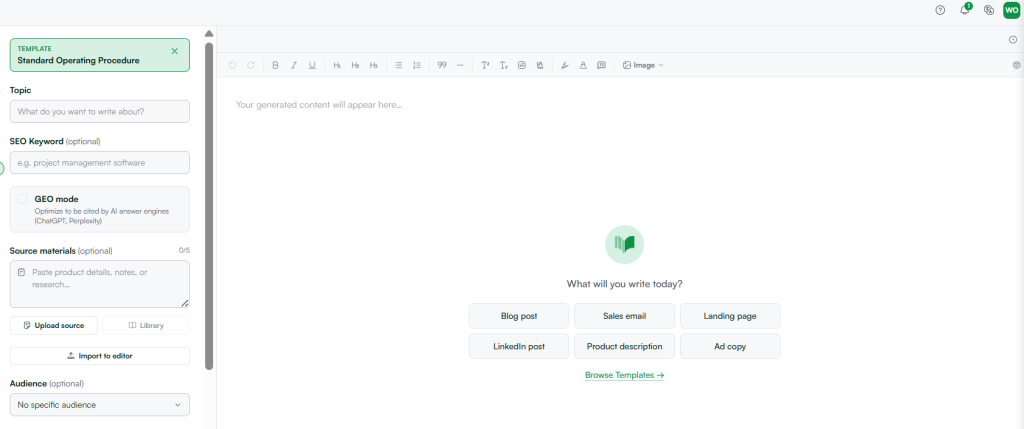
Tap open and provide the details of the process you are documenting, such as the goal of the process, the steps involved, and who is responsible for each step.
Step 5: Generate Your SOP
Tap on Generate. WordWriter will produce a complete, structured SOP based on the details you provided.
What Information to Have Ready Before You Start
To get the most accurate SOP on your first try, have these details ready before you open the template:
- The name and purpose of the process
- Who is responsible for carrying it out
- The tools, software, or resources involved
- Each step in order, even in rough form
- Any exceptions or edge cases worth noting
The more detail you provide upfront, the less back and forth editing you will need once the SOP is generated.
What a Good SOP Usually Covers
Once generated, your SOP should give you a clear structure across several key sections:
- Purpose — why this process exists and what it is meant to achieve
- Scope — who this SOP applies to and when it should be used
- Roles and responsibilities — who is accountable for each part of the process
- Step by step instructions — the actual process, broken down clearly
- Tools and resources — anything needed to complete the process
- Exceptions or troubleshooting — what to do when something does not go as expected
Having all of this laid out clearly means anyone on your team can follow the process correctly, even without prior context.
Reviewing and Refining Your SOP
Once WordWriter generates your SOP, read through it carefully. Check for:
- Accuracy of each step, in the correct order
- Missing details that only make sense to someone who already knows the process
- A tone and format consistent with your other internal documents
- Any sections that feel generic and could use more specific detail
If a section does not feel right, you can regenerate just that part, or ask WordWriter to expand on it with more detail.
Tips for Better AI Generated SOPs
- Give WordWriter your rough steps, even if unpolished. A messy list of steps is still more useful than a vague description of the process as a whole.
- Mention who is responsible for what. This avoids ambiguity later and makes the SOP more actionable for teams.
- Note exceptions upfront. If a process changes under certain conditions, mention this early so WordWriter can build it into the document rather than treating the process as one fixed path.
- Save well built SOPs as templates. Once you have a format that works well for your team, keep it in WordWriter so future SOPs follow the same structure with less effort.
Final Thoughts
SOPs matter most when someone actually needs to follow them, often during onboarding, a busy period, or when a process needs to run without you personally walking someone through it. With WordWriter, you can generate a clear, structured SOP in minutes, then refine it until it fits exactly how your team works.
Whether you are documenting your first process or building out a full library, WordWriter helps you get it done without losing a day to formatting and wording.
