
How to Write a Romance Scene Using AI
Have you ever been reading or writing a story, only to get stuck when it’s time for the romantic scene? You know your characters like each other, but finding the right words to describe their feelings, emotions, and conversations can be difficult.
Many writers spend hours writing and deleting the same paragraph because it either sounds too cheesy or too boring. If you’ve ever experienced this, you’re not alone.
Learning how to write a romance scene using AI can make the process much easier. Instead of staring at a blank page, AI can help you create emotional, natural, and engaging romance scenes that fit your characters and story.
In this guide, you’ll learn why romance scenes matter, why they can be difficult to write, and how to create one step by step using AI.
Let’s get started.
Related: How to Create Monthly Planners with AI
Why a Good Romance Scene Matters
A romance scene is more than two characters saying they like each other. The best scenes show emotions, build tension, and make readers care about what happens next.
Using AI can make this easier because it helps you:
Avoid overused lines: AI suggests fresh dialogue and descriptions instead of the same romantic phrases everyone has heard before.
Keep your characters consistent: Your characters continue speaking and acting the way they normally would.
Build emotional tension: AI helps you add small details like eye contact, silence, nervous smiles, or hesitant movements that make the scene feel real.
How to Write a Romance Scene with AI;WordWriter
1. Login to WordWriter
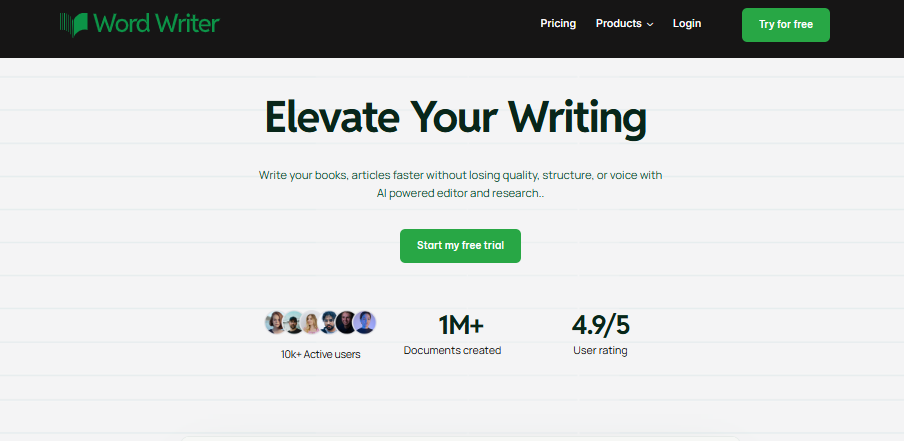
First, visit the official platform website and log in to your central dashboard. If you don’t have an active account, setting one up takes less than a minute.
2. Navigate to Templates
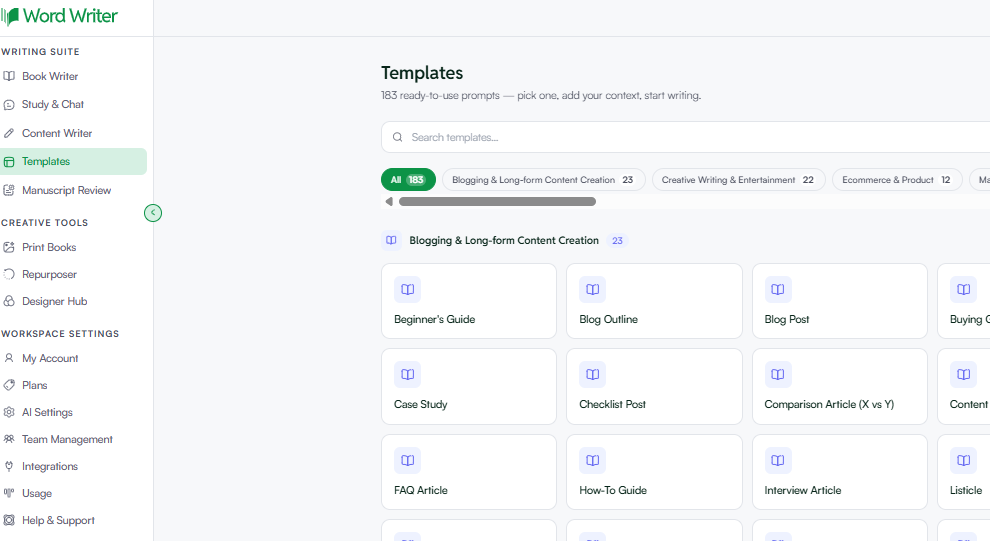
Once your dashboard loads, look over at the left-hand navigation menu. Click on the Template section to bring up the full library of over 100 specialized writing templates.
3. Select the Romance Scene Template

In the template search bar, simply type “Romance Scene”. Click on the matching template card to open up the specialized narrative generation panel.
4. Fill the Quick Preset Area

This is where you give the AI the exact boundaries for your piece. You will fill out the quick preset form:
- Topic: Give a brief summary of the scene (e.g., “Alex and Sam finally admit their feelings for each other while taking shelter from a sudden rainstorm in an old greenhouse.”).
- Source Content (Optional): Paste in any previous paragraphs or character descriptions so the AI knows their background history.
- Audience (Optional): Define your readers (e.g., “Young Adult romance readers” or “New Adult contemporary”).
- Tone: Choose the exact emotional vibe. You can pick from presets like Professional, Casual, Persuasive, Informative, Creative, Formal, or Humorous. For this type of scene, Creative works beautifully.
- The GEO Option: This is the ultimate tool for modern creators. In the presets, the GEO (Generative Engine Optimization) option can be clicked. By activating this, WordWriter will automatically structure the facts, schema, and direct answers in your piece so that it is perfectly built to get cited and featured inside AI search engines like Perplexity, Gemini, and ChatGPT when users ask about or search for stories in this niche!
- Output Language: Select the language you are writing your manuscript in. WordWriter supports a massive global list including English, Español, Français, Deutsch, Português, Italiano, Nederlands, Polski, Türkçe, Svenska, 日本語, and Bahasa Indonesia.
- Word Count: Select your desired length (500, 1K, 2K, or 5K+ words) based on how deep you want to go.
- Add Context: Add specific instructions, like “Keep the dialogue sharp, emphasize the sound of the rain, and focus heavily on unexpressed tension.”
5. Generate and Polish in the Editor
Click the Generate button. In seconds, WordWriter will compile a beautifully paced, highly sensory scene draft. From there, copy the text into the built-in Smart AI Editor. You can easily swap words, rewrite individual lines of dialogue, expand on descriptions, and format your paragraphs until the scene feels exactly right.
Conclusion
Writing romance scenes doesn’t have to be stressful.
With WordWriter, you can create emotional and engaging romance scenes much faster. Instead of getting stuck on every sentence, you can focus on your characters and the story you want to tell.
Customize your settings, add your story details, turn on the GEO option if you want better AI visibility, and let WordWriter help you create a romance scene your readers will remember.
Ready to bring your characters’ love story to life? Log in to WordWriter, open the Romance Scene template, and create your next unforgettable scene today.
