
How to Create a Sales Proposal With AI
Writing a sales proposal from scratch takes time you often do not have, especially when you are juggling multiple prospects at once. Getting the structure right, the tone convincing, and the details accurate all while trying to close deals quickly can slow down your entire sales process.
With WordWriter, you can generate a complete sales proposal using AI, giving you a polished, professional document in minutes instead of hours.
In this guide, we will walk through exactly how to create a sales proposal using AI on WordWriter.
Related: How to create a sales page opener using AI
Why Use WordWriter for Your Sales Proposal
A sales proposal needs to do a lot in a short document. It has to outline the problem, present your solution, justify the cost, and make the client feel confident saying yes. Writing this manually for every prospect means either reusing the same generic template or spending hours customizing one from scratch.
With WordWriter, you can:
- Generate a tailored proposal in minutes instead of starting from a blank page
- Keep your tone consistent and professional across every prospect
- Customize pricing, scope, and details without rebuilding the structure each time
- Move faster through your sales pipeline without sacrificing quality
How to Create a Sales Proposal on WordWriter
Here is exactly how to create a sales proposal using WordWriter’s AI template, step by step.
Step 1: Sign in to WordWriter
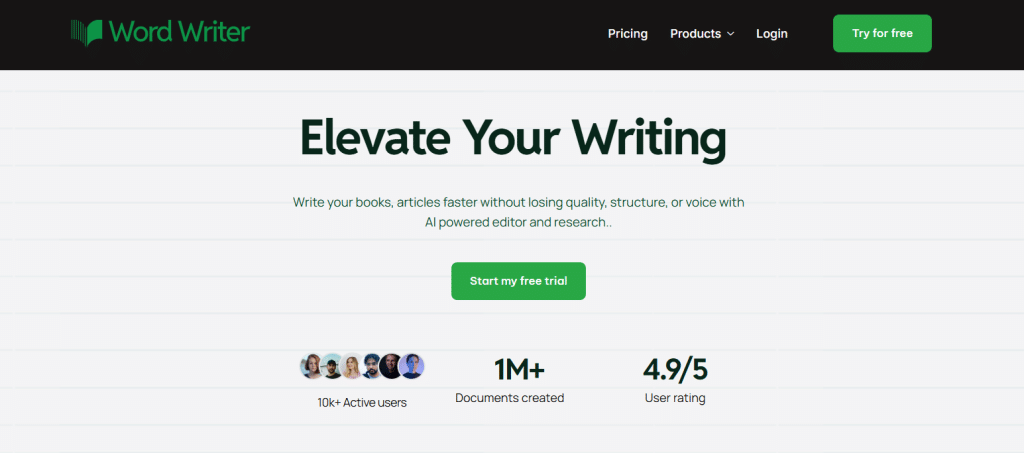
Log into your WordWriter account to access the AI template library.
Step 2: Open Templates
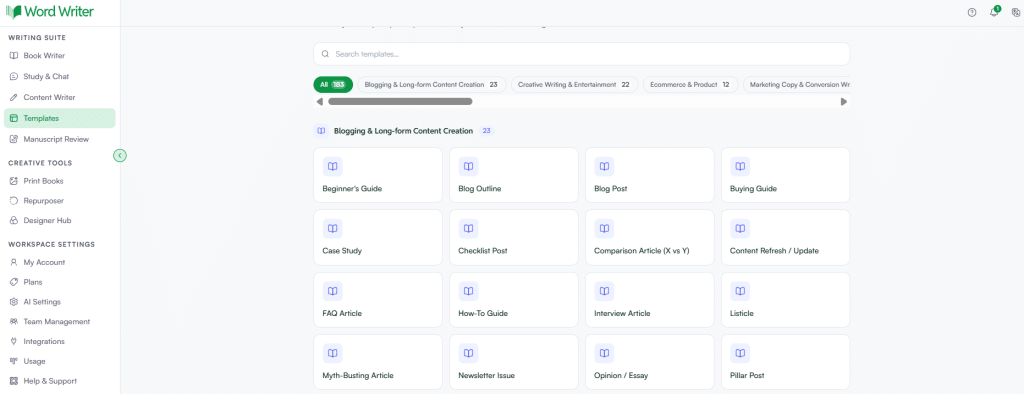
On the left corner of your dashboard, tap on Templates.
Step 3: Search for Sales Proposal
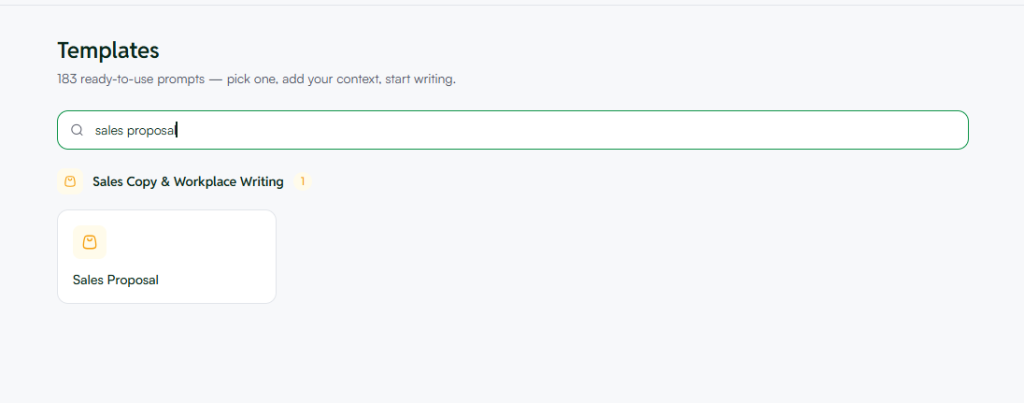
Browse or search for the sales proposal template within the business documents section.
Step 4: Open the Template and Add Your Details
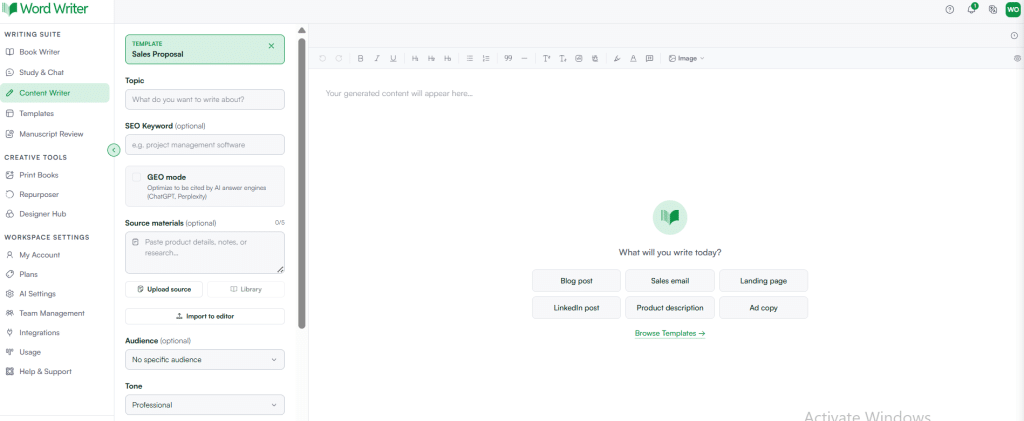
Tap open and provide the details of your proposal, such as the client’s business, the problem you are solving, your pricing, and your proposed timeline.
Step 5: Generate Your Proposal
Tap on Generate. WordWriter will produce a complete, structured sales proposal based on the details you provided.
What Information to Have Ready Before You Start
To get the most accurate proposal on your first try, have these details ready before you open the template:
- The client’s name and business, along with any specific pain points they have shared
- The product or service you are proposing, along with key features or benefits
- Your pricing structure, including any packages or tiers
- Your proposed timeline or next steps
The more specific your input, the less editing you will need to do once the proposal is generated.
What a Good Sales Proposal Usually Covers
Once generated, your proposal should give you a clear structure across several key sections:
- Executive summary — a brief overview of the client’s problem and your proposed solution
- Problem statement — a clear articulation of the challenge the client is facing
- Proposed solution — how your product or service addresses that challenge
- Scope of work — what is included, and any relevant deliverables or milestones
- Pricing and packages — a clear breakdown of cost and what it covers
- Timeline — expected start date, milestones, and completion
- Call to action — next steps for the client to move forward
Having all of this laid out clearly makes it easier for the client to say yes without needing to ask follow up questions.
Reviewing and Refining Your Proposal
Once WordWriter generates your proposal, read through it carefully. Check for:
- Accuracy of the client’s name, business details b, and pain points
- Correct pricing and package information
- A tone that matches how you typically communicate with this client
- Any sections that feel generic and could use more specific detail
If a section does not feel right, you can regenerate just that part, or ask WordWriter to expand on it with more detail.
Tips for Better AI Generated Sales Proposals
- Be specific about the client’s pain points. The more WordWriter understands what the client is struggling with, the more targeted your proposed solution will sound.
- Include real numbers where possible. Vague pricing or timelines make a proposal feel less credible. Specific figures build trust faster.
- Customize the opening line. A proposal that references something specific from your conversation with the client feels far less templated than one that opens generically.
- Save strong versions as templates. Once you find a structure and tone that consistently closes deals, save it in WordWriter so future proposals take even less time to create.
Related: How to Generate Product Name With AI
Final Thoughts
A sales proposal is often the deciding factor between a prospect moving forward or going quiet. With WordWriter, you can generate a clear, professional proposal in minutes, then refine the details to fit each specific client.
Whether you are sending your first proposal of the week or your tenth, WordWriter helps you move faster through your pipeline without losing the personal touch that closes deals.
