
How to Create a Book Chapter on WordWriter
You have a book idea that has been living rent-free in your head for months, maybe even years. The plot is there, the characters are forming, the opening scene plays on a loop in your mind, but the moment you sit down to write, the blank page stares back at you like a final boss. You open a new document, type a sentence, delete it, and close your laptop. Sound familiar?
That is exactly the kind of creative paralysis WordWriter was built to solve. Whether you are writing your first novel, a self-help guide, a romance, or a business book, getting from idea to structured chapters is often the hardest part of the journey. WordWriter removes that friction entirely with its AI-powered book writing tool, letting you go from concept to chapter outline in a matter of seconds, no writing degree required.
In this guide, you will learn exactly how to create a book chapter on WordWriter, step by step.
What Is WordWriter and Why Should You Use It?
WordWriter has established itself as apremier AI writing tool for authors who need comprehensive research capabilities and professional-grade content creation. The platform combines cutting-edge AI technology with robust features that make it a go-to choice for serious authors across all genres.
With WordWriter, you can create books in any genre, including romance, thriller, fiction, travel, and self-help, and publish on Kindle or as a paperback, or download your work as a PDF, DOCX, or ePub. You also keep 100% of the rights to your book, which is a major plus for self-publishing authors.
The platform can help you reduce the time spent creating content by automating research, rewriting, and repurposing workflows, freeing up more than 20 hours each week. For busy writers juggling work, family, and a book dream on the side, that kind of time saving is everything.
How to Create a Book Chapter on WordWriter
Step 1: Sign Up on WordWriter
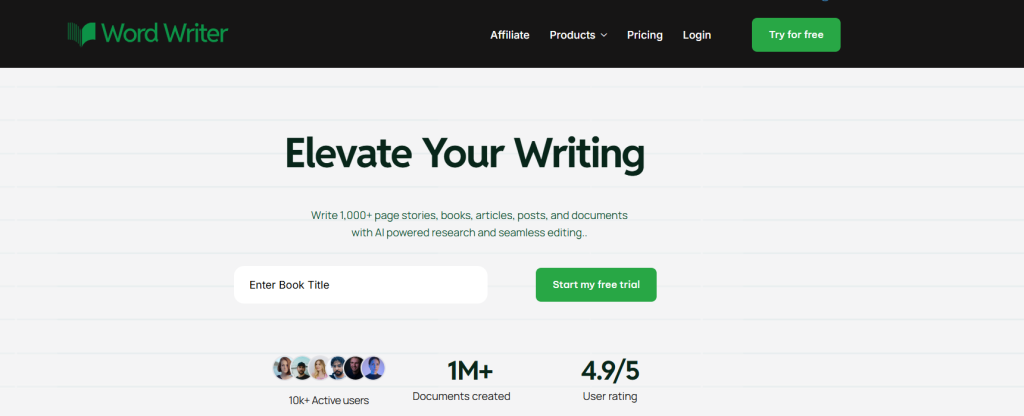
Head over to wordwriter.co and create a free account if you have not already. Registration is quick and straightforward, and you do not need a paid plan to get started.
Once inside, you get immediate access to the comprehensive AI dashboard where all your book creation tools are centralized. The platform’s intuitive interface ensures you can start writing within minutes of registration.
Step 2: Find the Book Writer Section
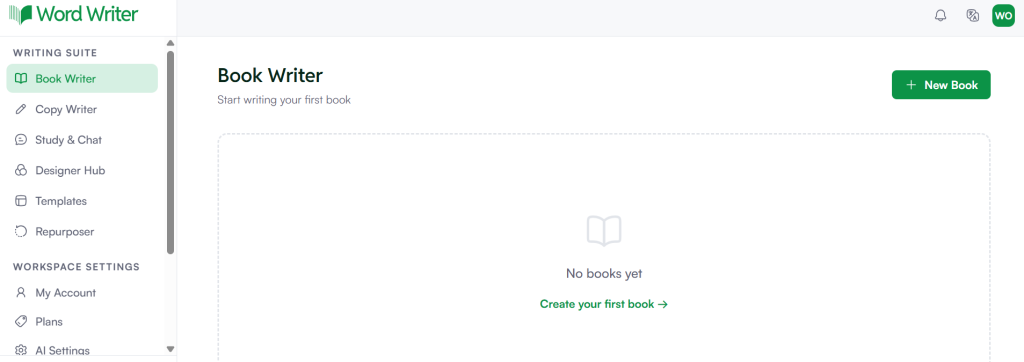
Once you are logged in, look to the top left corner of your dashboard. You will find a section labeled “Book Writer.” Tap on it to get started. This is your creative command center, built specifically for book projects.
Step 3: Create Your First Book
A new page will appear with everything you need to know about getting started. Tap on the “Create Your First Book” option to kick things off. If you have been sitting on a book idea for a while, this is the moment it starts to become real.
Step 4: Fill In Your Book Details
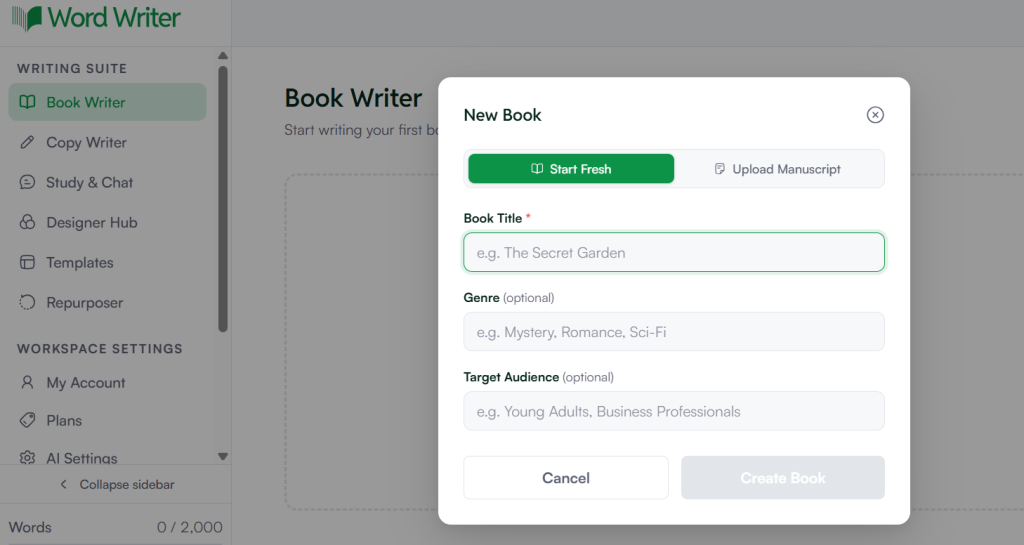
The next page will ask you to enter a few key details including your book title, genre, and targeted audience. Do not rush through this step. Your title is a crucial first step that sets the tone and direction for your entire project. The AI uses it as a foundation to understand your book’s theme, genre, and target audience. Wordwriter The more intentional you are here, the better your results will be downstream.
Once you are done, tap the “Create My Book” button to proceed.
Already Have a Manuscript? Upload It Directly
If you already have a manuscript ready, you do not have to start from scratch. WordWriter gives you the option to upload it directly instead. This is especially useful if you have been writing in another tool and want to bring your work into WordWriter to continue from where you left off, or to restructure it using the AI features.
Step 5: Generate Your Book Chapters
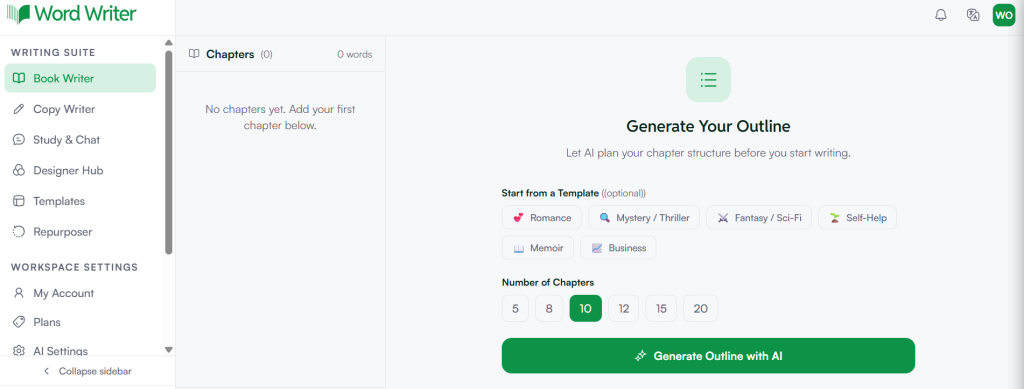
This is where the magic happens. The next page is your chapter generation hub. WordWriter comes with a library of templates covering every genre from fiction to academic writing, so be sure to browse through and see if any of the prebuilt options align with your project.
From the same page, you can select how many chapters you want your book to have. Once you are happy with your settings, tap “Generate Outline with AI” and within seconds, your full chapter outline will be ready. Prefer a more hands-on approach? You can also choose to add chapters manually, giving you complete creative control over how your book is structured.
That is really all it takes to get your book chapters up and running.
What Happens After Your Chapters Are Generated?
Once your chapter outline is live, you are not done, you are just getting started. From this point, WordWriter gives you the tools to go even deeper.
You can create organized, coherent chapters with logical flow, and when you are ready, prepare your manuscript once and publish seamlessly across Kindle, Apple Books, and print formats, using professionally structured layouts that comply with industry publishing and formatting standards.
WordWriter also supports long-form excellence, allowing you to generate complete book manuscripts of up to 200 or more pages with maintained consistency throughout. For non-fiction writers and researchers, the built-in AI Research Agent gathers, analyzes, and cites credible sources so your content is not just well-written but also well-supported.
Tips to Get the Most Out of WordWriter’s Book Writing Tool
Before you dive in, here are a few things to keep in mind that will make the whole process smoother.
- Be specific with your book details. The more clearly you define your genre, title, and target audience upfront, the more accurately the AI can generate chapters and outlines that match your vision. A vague input will produce vague results.
- Check the prebuilt genre templates before generating manually. WordWriter has templates tailored to specific genres, and using one that fits your project can save you a significant amount of time and give your outline a solid structural foundation from the start.
- Use the manual chapter add feature when you need more control. If the AI-generated outline does not fully capture your vision for a particular section, you can always add or adjust chapters yourself. Think of it as a collaboration, not a handover.
- Do not skip the targeted audience field. This detail might feel optional, but it shapes the tone and depth of everything the AI generates for you. A self-help book for teenagers reads very differently from one written for corporate executives, and WordWriter accounts for that.
Ready to Go Further?
Creating your book chapters is just the beginning. If you want to move beyond the outline and generate the full content of your book, WordWriter makes that possible too. You can learn more about the complete book creation process in our detailed post on how to create a book.
Whether you are writing your very first novel or adding another title to your shelf, WordWriter gives you the structure, speed, and creative support to bring your story to life without the overwhelm. The only thing left to do is start.
