
How to Create a Storyboard With AI
If you are wondering how to create a storyboard with AI, you can now use AI tools to turn your story, manuscript, or book into a structured storyboard. Instead of starting every scene from scratch, AI can help you organize your story, suggest visuals, define characters and locations, create a screenplay, and prepare shot plans.
Creating a storyboard can take a lot of time, especially when you have a story in your head but need to turn it into clear visual scenes. You have to decide what happens in each scene, where it happens, who appears, what the camera should show, and how everything should flow together.
This is where AI can make the process easier.
One tool that makes this process easier is WordWriter. It allows you to take an existing story or create one and turn it into a storyboard with a clear creative direction.
In this guide, you will learn what a storyboard is, why it is useful, and how to create a storyboard with AI using WordWriter. We will go through the process from uploading your story to generating your final shot plan and AI-ready prompts.
What Is a Storyboard?
A storyboard is a visual plan of a story. It breaks a story into different scenes or shots so you can understand how the final video, film, animation, or other visual content should look.
Think of a storyboard as a blueprint for your visual project.
Before filming or generating your scenes, you can use a storyboard to decide what should happen in each part of the story. It can show the characters, locations, actions, camera angles, props, and visual direction.
For example, imagine you are creating a short film about a young woman who receives an unexpected letter.
Instead of simply writing:
“She receives the letter and becomes shocked.”
A storyboard can break the moment into smaller visual parts.
The first shot may show the woman sitting at her desk.The second shot may show her opening the envelope.The third shot may focus on the letter in her hands.The fourth shot may show her facial expression as she reads it.The fifth shot may show her standing up in shock.This makes the story much easier to visualize before production begins.
How to Create a Storyboard With AI Using WordWriter
Step 1: Log In to WordWriter
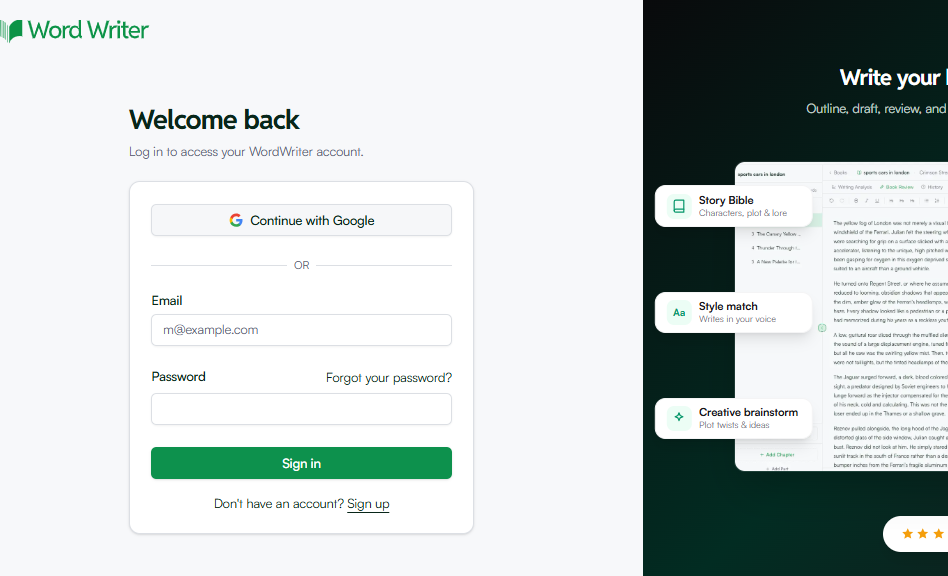
The first step is to log in to your WordWriter account. If you don’t have an account, create one. It only takes a few minutes.
Step 2: Navigate to Storyboard
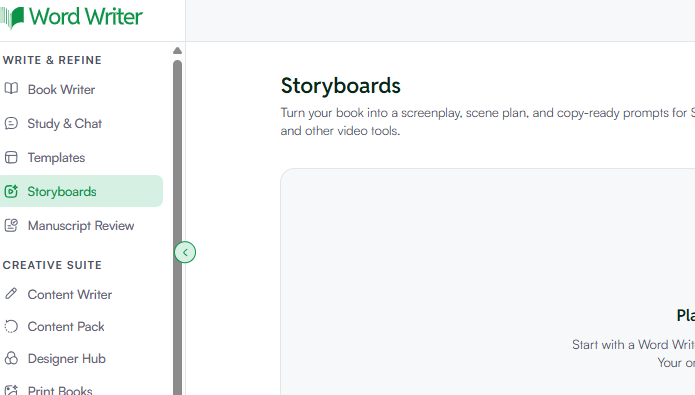
After logging in, go to Storyboard.
Step 3: Click “New Storyboard”
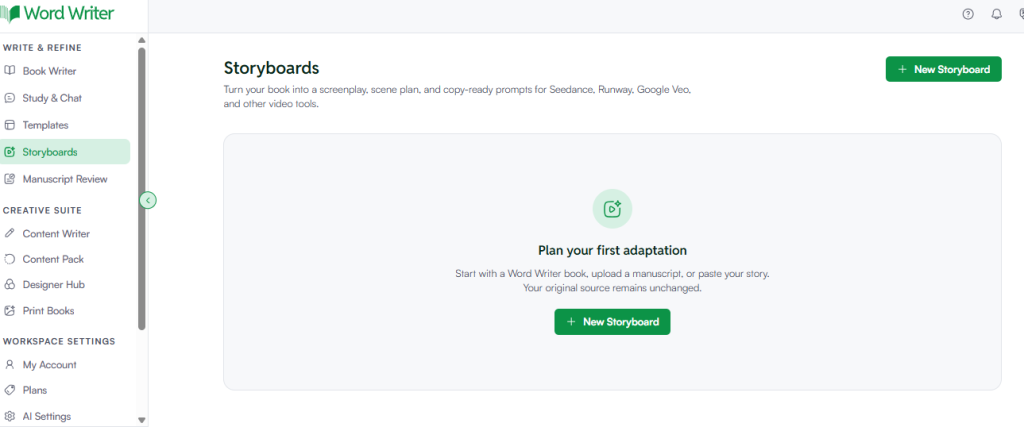
Once you are inside the Storyboard section, click “New Storyboard.”
This will start a new storyboard project.
Step 4: Choose Your Source Material
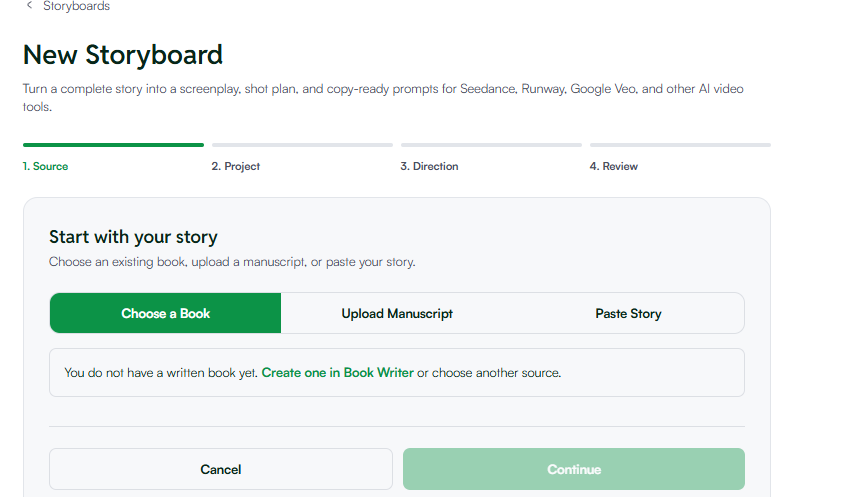
At this stage, you can choose the content you want to turn into a storyboard.
You can:
- Choose an existing book.
- Upload a manuscript. You can upload a PDF, DOCX, or TXT file.
- Paste your story.
If you already have a book or manuscript, you do not need to rewrite the entire story. You can simply bring your existing content into the storyboard workflow. If you do not already have a book, you can go to Bookwriter and create one in WordWriter.
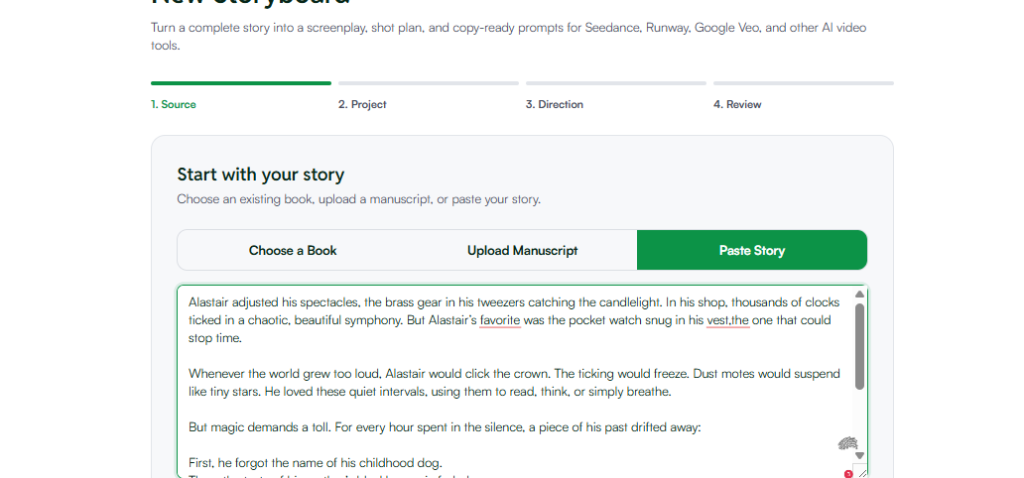
Step 5: Choose a Book, Paste Your Story, or Add a Manuscript
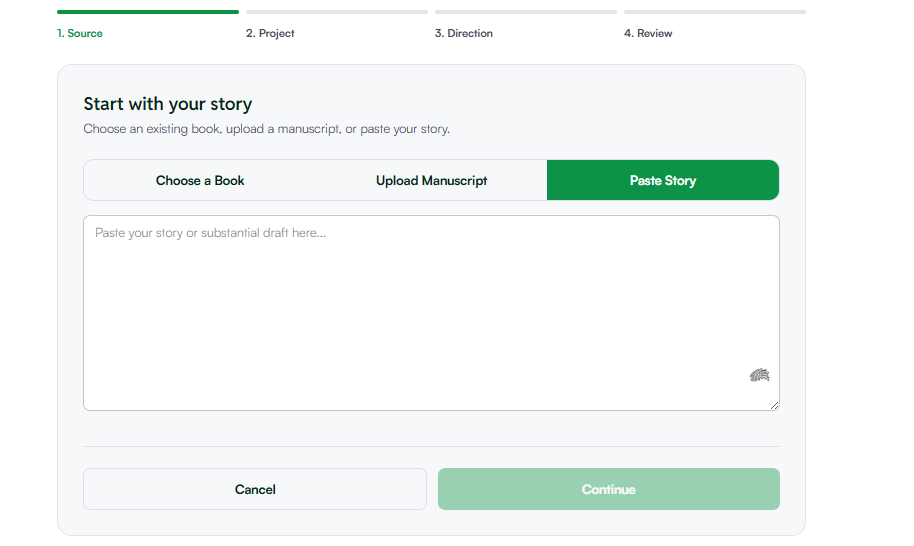
After deciding what you want to use, select your source material.
For example, if you already have a manuscript, upload it. If your story is already written somewhere else, you can paste it into the platform. If you have an existing book in WordWriter, you can choose that book. The goal is to give WordWriter the story it needs to understand before creating the storyboard.
Step 6: Define Your Project
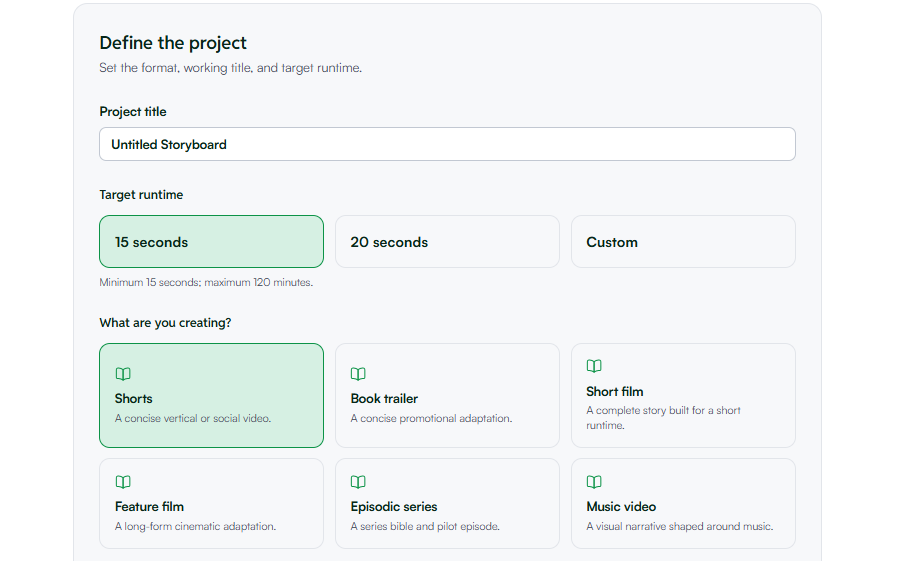
The next step is to tell WordWriter what you are creating.
You will provide details such as your project title, target runtime and what you are creating whether it is a;
- Shorts
- Book trailer
- Short film
- Feature film
- Episode series
- Music video
Step 7: Set the Creative Direction
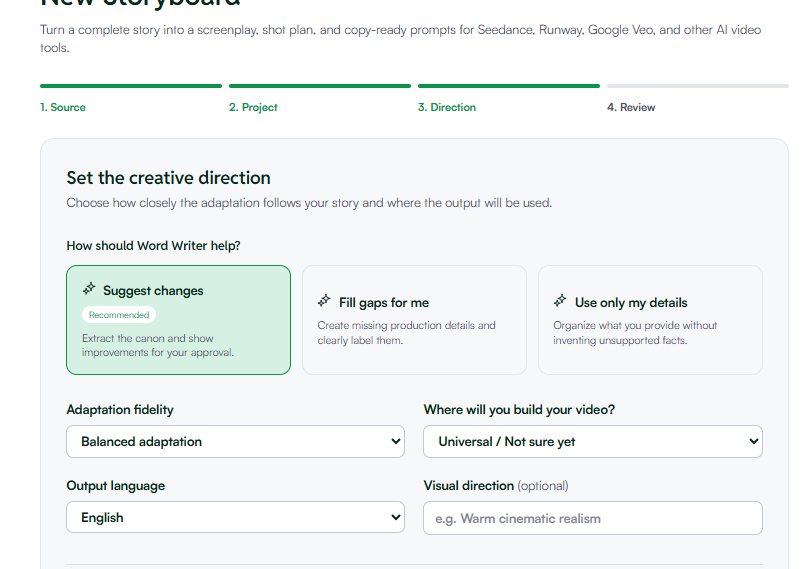
After defining your project, the next step is to set the creative direction.
This is where you provide guidance about how you want the project to look and feel.
Step 8: Review and Generate Your Storyboard
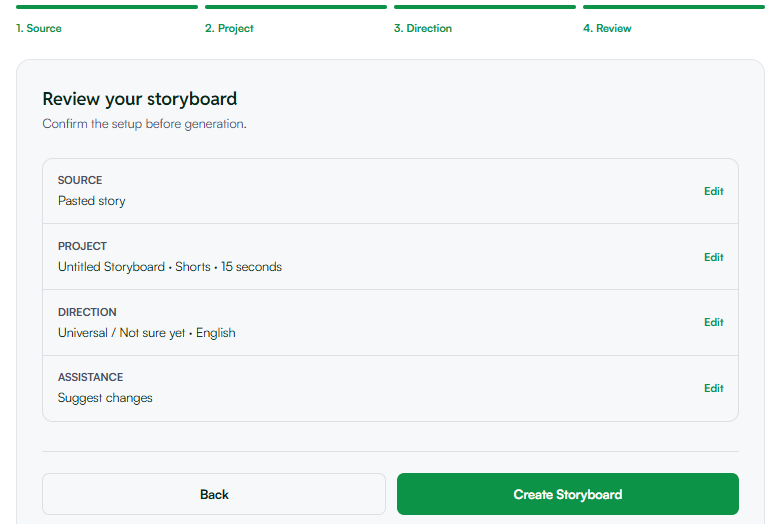
Once your project details and creative direction are ready, you can begin generating the storyboard.
WordWriter takes you through several stages.
The first stage is the screen table.
The Screen Table
The screen table helps organize the important elements of your story visually.
At this stage, WordWriter can suggest things such as:
- Camera language
- Characters
- Locations
- Props
You do not have to accept every suggestion.
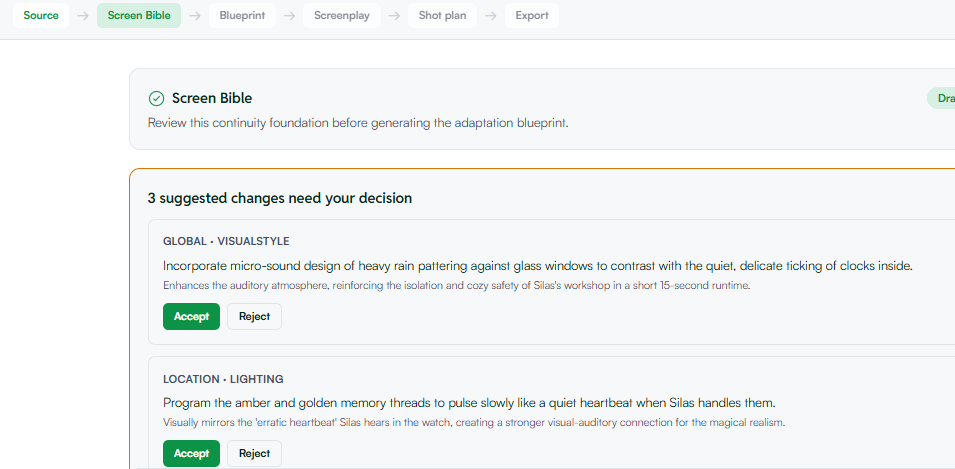
Edit Your Story and Visual Direction
You can edit the story and visual direction if the AI’s suggestion does not fully match what you have in mind.
Edit Characters
You can also review and edit the characters.
Edit Locations
The same applies to locations.
Step 9: Generate the Blueprint
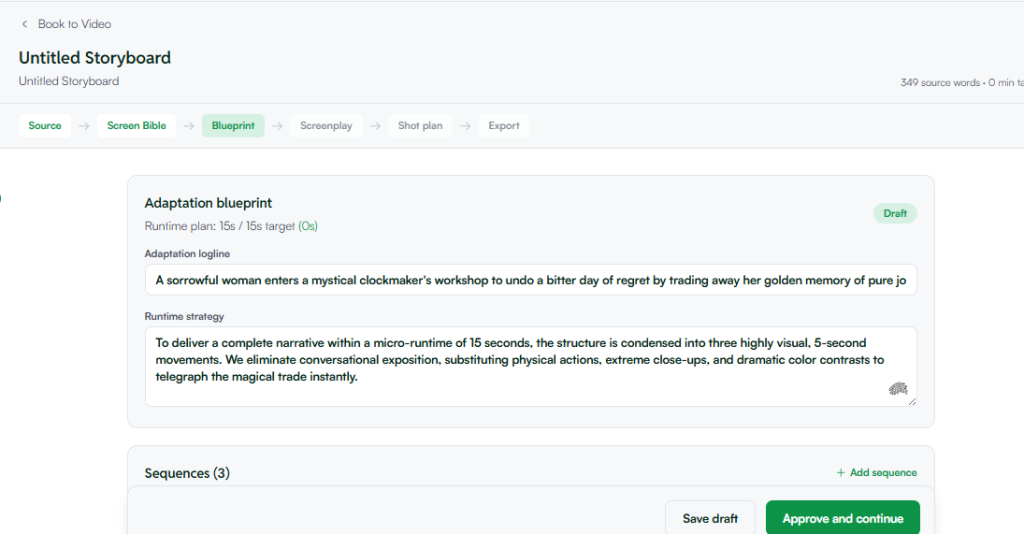
After reviewing the screen table, the next stage is to generate the blueprint.
The blueprint gives you a more organized structure for your visual project.
Step 10: Generate the Screenplay
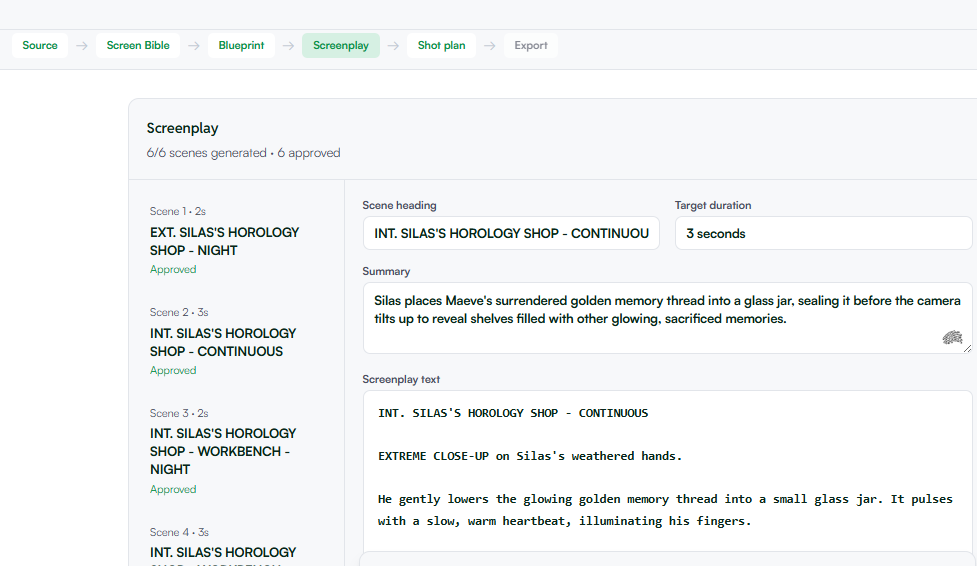
The next step is to generate the screenplay.
Step 11: Generate the Shot Plan

After reviewing and approving the screenplay, you can generate the shot plan.
The shot plan takes your visual project one step further.
Step 12: Get AI-Ready Prompts
One of the useful parts of the WordWriter storyboard process is that you can prepare prompts for different AI editing or generation platforms.
Once your shot plan is ready, you can review the prompt created for your project. You can then copy the prompt and use it on the AI platform you want to work with.
You can also select different platforms. When you change the platform, the prompts change to fit that platform.
This means you do not have to create a completely new prompt from scratch every time you want to use a different AI tool. You can simply select the platform you want and use the prompt prepared for it.
Conclusion
Learning how to create a storyboard with AI can save you time and make your creative process more organized.
With WordWriter, you can start with a book, manuscript, document, or story. You can then define your project, set the creative direction, review the screen table, generate a blueprint, create the screenplay, and develop a shot plan.
You can also generate prompts for different AI platforms and copy them directly into the platform you want to use.
The goal is not to let AI replace your creativity. Instead, use it to handle the planning and organization while you remain in control of the story and final creative direction.
