
How to Create a Shopify Product Page using AI
Knowing how to create a Shopify product page using AI is the ultimate shortcut to converting passive browsers into paying customers without spending days writing sales copy and building layouts. High-converting Shopify pages require a delicate balance: punchy headlines, clear benefit bullet points, persuasive product descriptions, and structured trust signals.
In this guide, we will cover why optimized product pages drive e-commerce sales, the manual struggle of product launches, and a step-by-step walkthrough for building your page using WordWriter.
Let’s dive in.
Why High-Converting Product Pages Matter
Your product page is where the decision to buy actually happens. Traffic from ads or search engines is wasted if the landing experience lacks clarity or fails to answer buyer objections.
An AI-optimized Shopify product page is vital because:
- It Highlights Benefits Over Features: Focuses on how the product solves a real problem for the buyer rather than listing boring technical specifications.
- It Drives Organic Search Traffic: Structures descriptions and metadata so your store ranks higher on Google and AI search engines.
- It Eliminates Buying Hesitation: Integrates clear social proof, benefit bullet points, and high-impact calls to action (CTAs).
Step-by-Step: How to Create a Shopify Product Page on WordWriter
Building an e-commerce product page with WordWriter requires only a few simple steps:
1. Login to Your Dashboard
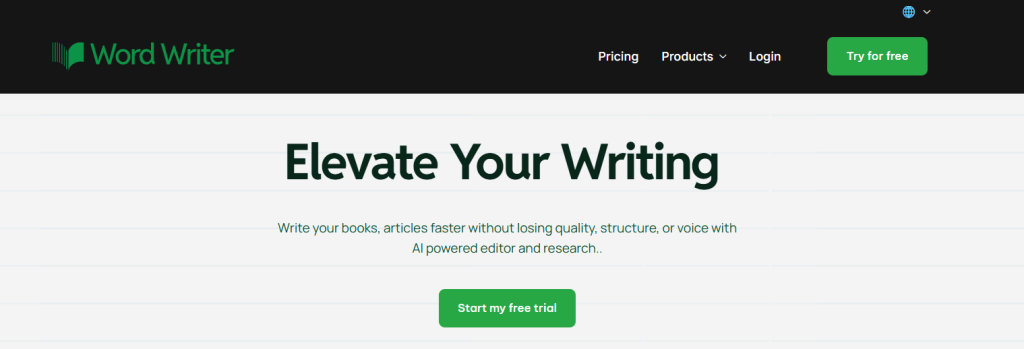
First, visit the official WordWriter platform and log in to access your workspace.
2. Navigate to Templates
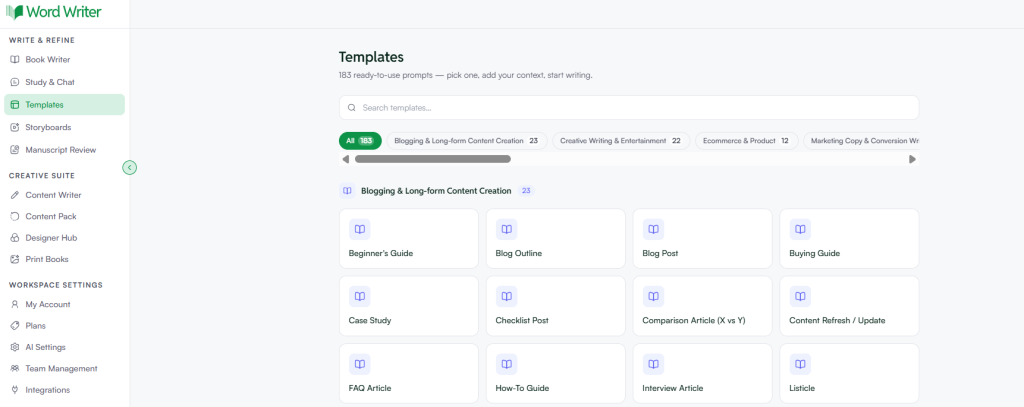
From your main dashboard menu on the left, click on Templates library to view the e-commerce copywriting tools.
3. Search for “Shopify Product Page”
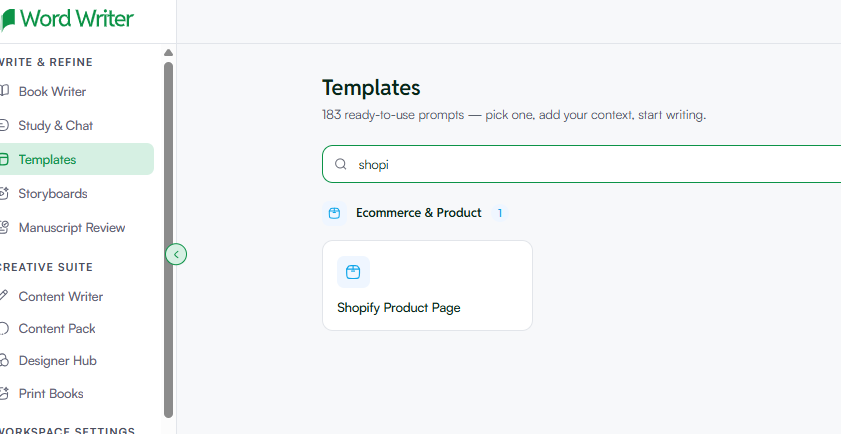
Type “Shopify Product Page” into the search bar, then click on the dedicated template card to open the generation panel.
4. Enter Your Product Details
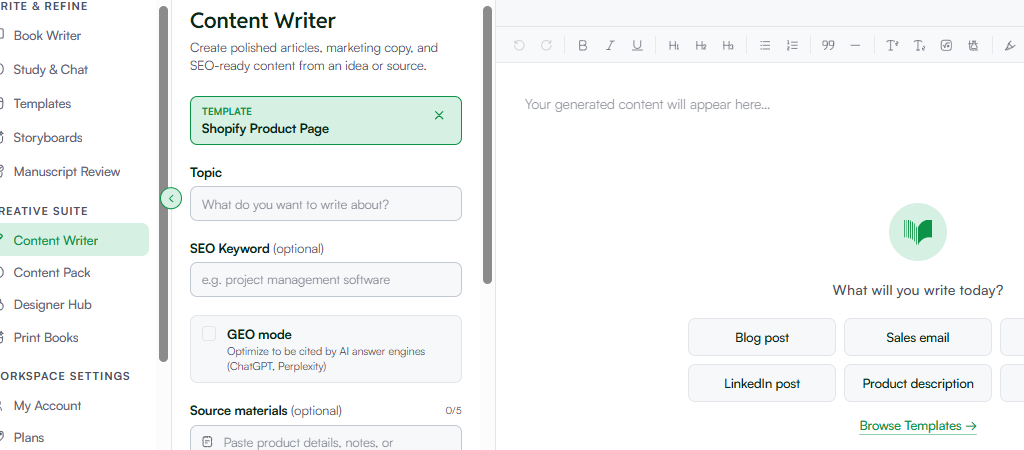
Fill in the core parameters to guide the generation engine:
- Product Name & Category: Name your item (e.g., “Ergonomic Bamboo Desk Organizer”).
- Key Features / Specs: List raw product details or bullet points (e.g., “Built-in wireless charger, sustainably sourced bamboo, 3 modular drawers”).
- Tone: Select Persuasive, Casual, or Enthusiastic to align with your brand identity.
- The GEO Option: Click to activate GEO (Generative Engine Optimization). This ensures your product features and specifications are formatted with schema-friendly structures that AI search engines (like Gemini, Perplexity, and ChatGPT) index when users ask for product recommendations.
- Output Language & Length: Select your target storefront language and desired description length.
5. Generate, Edit, and Export to Shopify
Click Generate. WordWriter will produce a structured product listing complete with a hook headline, benefit-driven story paragraphs, bulleted key features, and SEO meta tags. Open the draft in the Smart AI Editor to make final tweaks, then copy and paste the formatted content directly into your Shopify admin panel!
Conclusion
Launching new e-commerce products shouldn’t require endless hours of writing sales copy or guessing what turns visitors into buyers. WordWriter is powerful because it automates the heavy lifting, delivering polished, persuasive Shopify product pages optimized for both human shoppers and AI search engines. By leveraging targeted templates and enabling GEO optimization, you can scale your store’s catalog and boost sales effortlessly.
Ready to transform your e-commerce store with high-converting copy? Login to WordWriter today, select the Shopify Product Page template, and generate your listing now!
