
How to Create Objection Handling Email with AI
Knowing how to write an objection handling email can help turn a hesitant lead’s “no” or “maybe” into a confident “yes.” When a prospect has concerns about price, timing, or whether your product is the right fit, a well-written follow-up email gives you the chance to acknowledge their concerns, explain your value clearly, and keep the conversation moving without sounding pushy.
In this guide, you’ll learn why objection handling emails work so well, how AI makes writing them easier, and the simple steps to create one with WordWriter.
Related: How to Write a Salary Negotiation Email
Why Handling Objections via Email Works
Responding to objections during a live sales call can feel stressful. Email gives both you and your prospect more time to think, making it easier to have a productive conversation.
A good objection handling email does three important things:
- Acknowledges the Prospect’s Concern: It shows you listened carefully and understand their hesitation instead of ignoring it.
- Reinforces Your Value: It highlights the benefits, ROI, or customer success stories that directly address their concern.
- Offers a Simple Next Step: It encourages the prospect to continue the conversation with an easy, no-pressure call to action (CTA).
The Manual Struggle vs. The AI Advantage
Writing an objection handling email from scratch can be difficult. You may worry about sounding too aggressive, too defensive, or too pushy when explaining your product’s price or value. Finding the right balance between empathy and persuasion often takes time and can slow down your follow-up.
With WordWriter, the process becomes much easier. Instead of struggling to find the right words, you can quickly create a clear, professional, and persuasive email designed to address your prospect’s concerns.
Related: How to Write Product Launch Email Using AI
How to Write an Objection Handling Email with AI – WordWriter
Creating a personalized objection handling email with WordWriter only takes a few simple steps:
1. Login to Your Dashboard
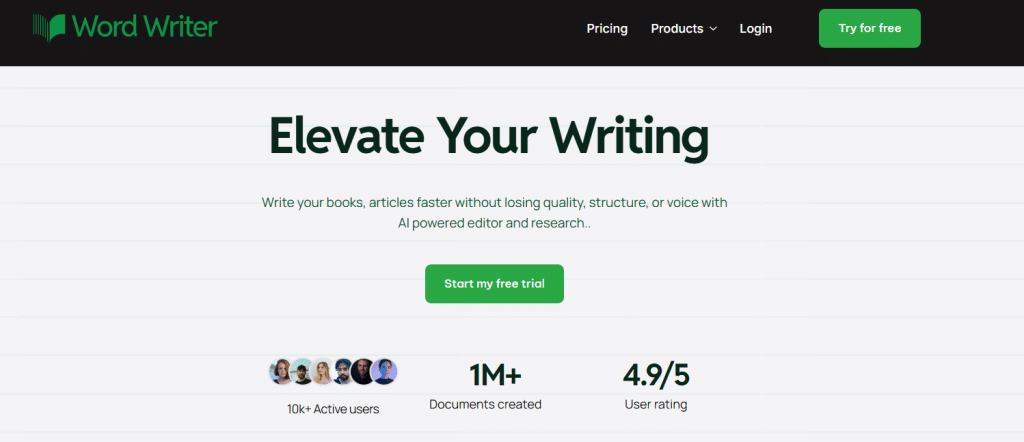
Go to the official WordWriter platform and login to access your dashboard.
2. Navigate toTemplates
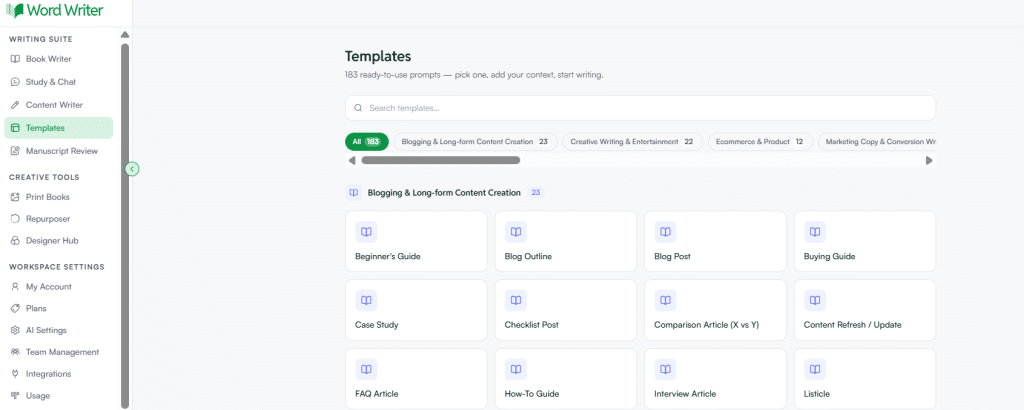
On the left-hand menu, click Templates library to browse the available sales and email writing tools.
3. Search for “Objection Handling”
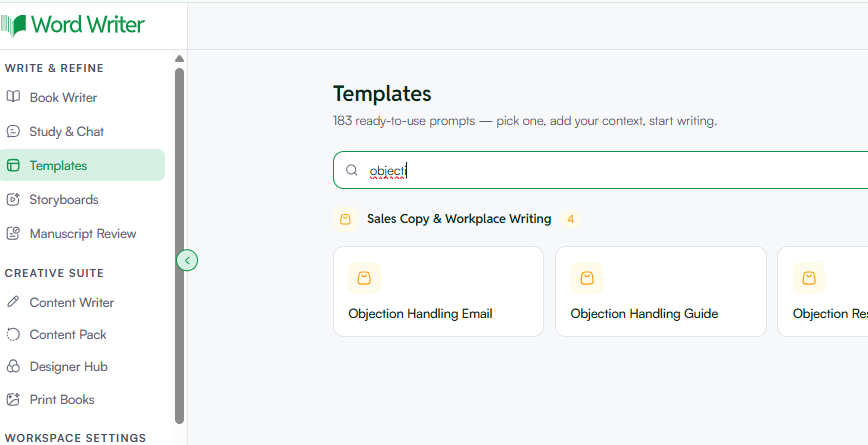
Type “Objection Handling Email” into the search bar, then click the matching template to open it.
4. Enter Your Details & Buyer Objection
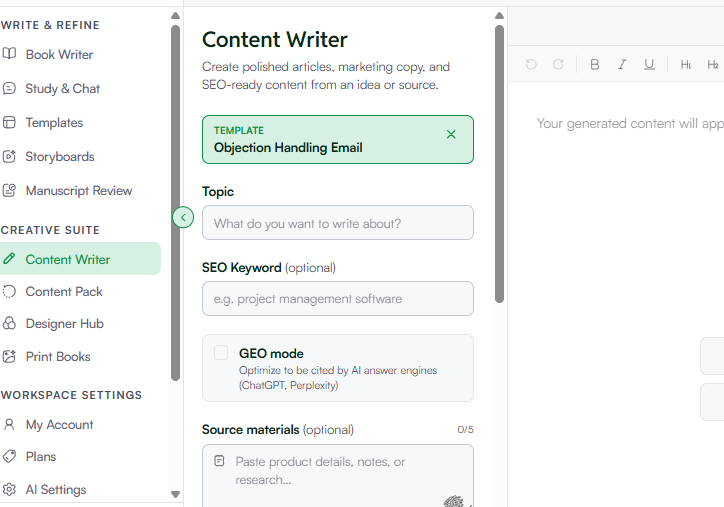
Provide the information needed to help the AI understand your situation:
- Topic/Product: Enter the name of your product or service (for example, “B2B SaaS marketing analytics software”).
- The Buyer’s Objection: Type or paste the prospect’s concern (for example, “Your price is higher than Competitor X,” “We don’t have time to implement this right now,” or “We’ll have to wait until next quarter”).
- Tone: Choose Professional, Persuasive, or Empathic depending on how you want your message to sound.
- The GEO Option: Turn on GEO (Generative Engine Optimization). This helps your email include clear, value-focused summaries that AI assistants and search engines can better understand when comparing solutions.
- Word Count: Select a shorter length, usually 150 to 250 words, so your prospect can read it quickly.
5. Generate, Edit, and Send
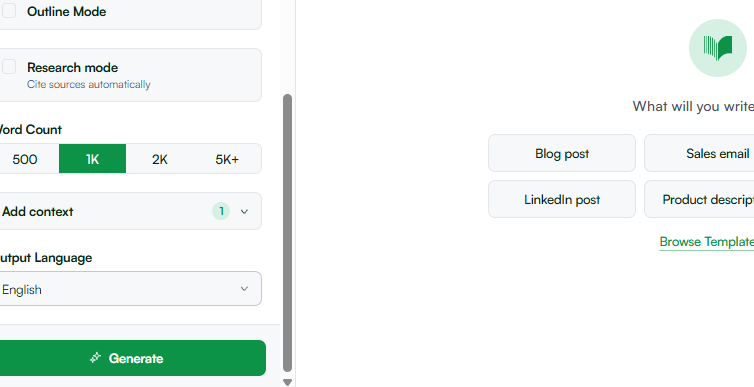
Click Generate. WordWriter creates a well-structured email with an understanding opening, a clear explanation of your value, and a simple next step. You can then open it in the Editor to add personal details from your recent sales conversation, include specific ROI figures, update your signature, and send it to your prospect.
Conclusion
A prospect’s objection doesn’t have to end the sales conversation. WordWriter makes handling difficult sales emails much easier by helping you create thoughtful, persuasive responses that build trust and address buyer concerns. With the right template and a response tailored to your prospect’s needs, you can keep deals moving forward and increase your chances of closing more sales.
Ready to turn buyer concerns into signed contracts? Login to WordWriter today, choose the Objection Handling Email template, and create your winning response in minutes!
